![trekksoft-whitelogo.png]](https://support.trekksoft.com/hs-fs/hubfs/trekksoft-whitelogo.png?height=30&name=trekksoft-whitelogo.png)
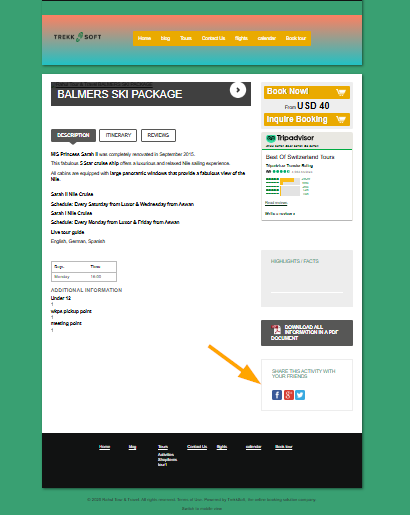
The social media buttons appear in the activity details page as highlighted in the example below (Harmony Theme):
To open the CUSTOM.CSS file, navigate to the following path:
- Backoffice > Settings > TrekkSoft Website Builder> Website Settings.
- Now you are in the Settings tab. In the top right-hand corner, click the HTML/CSS Editor button.
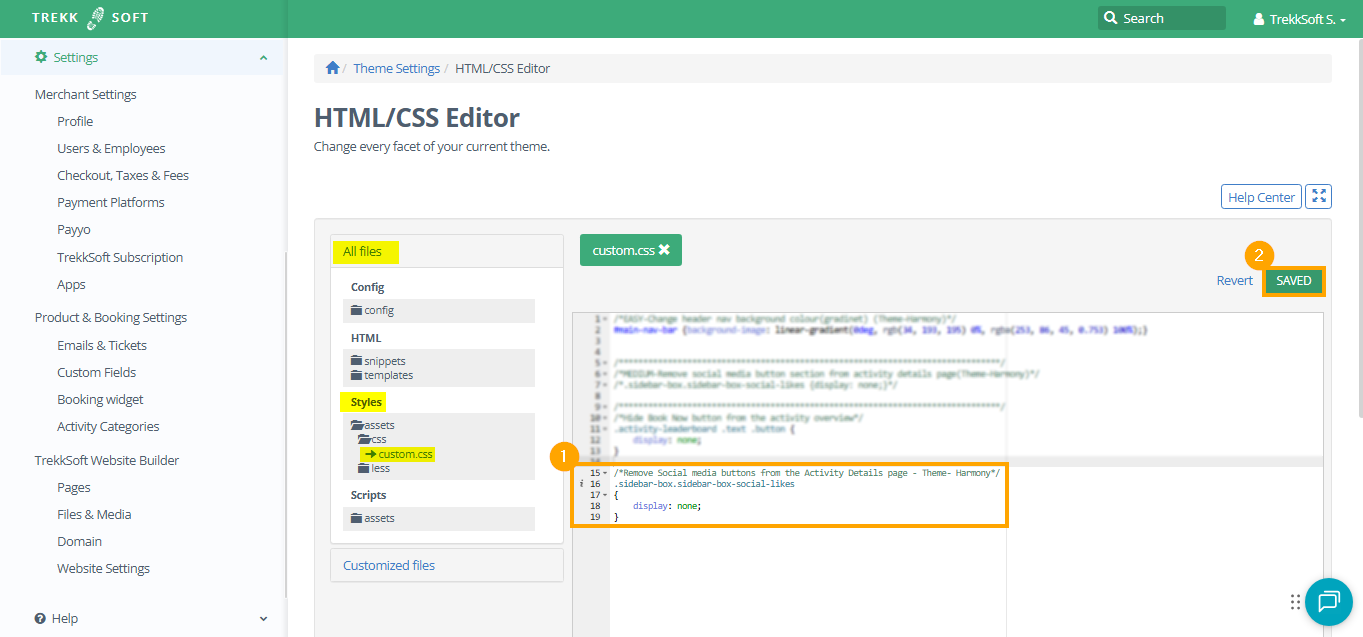
- Click on All files > Styles > assets > css> custom.css
- Then add the following code snippet and paste into custom.css (as shown below):
/*Remove Social media buttons from the Activity Details page: Theme-Harmony*/
.sidebar-box.sidebar-box-social-likes
{
    display: none;
}
HELP ARTICLE ! To get more details on how to use custom CSS to customize your TrekkSoft website, click here.