![trekksoft-whitelogo.png]](https://support.trekksoft.com/hs-fs/hubfs/trekksoft-whitelogo.png?height=30&name=trekksoft-whitelogo.png)
Here's an overview of what we cover in this article:
________________________________________________________________________
How to set up Related activities
- Navigate to your Products > Activities from the left menu in your TrekkSoft Backoffice.
- Edit an activity.
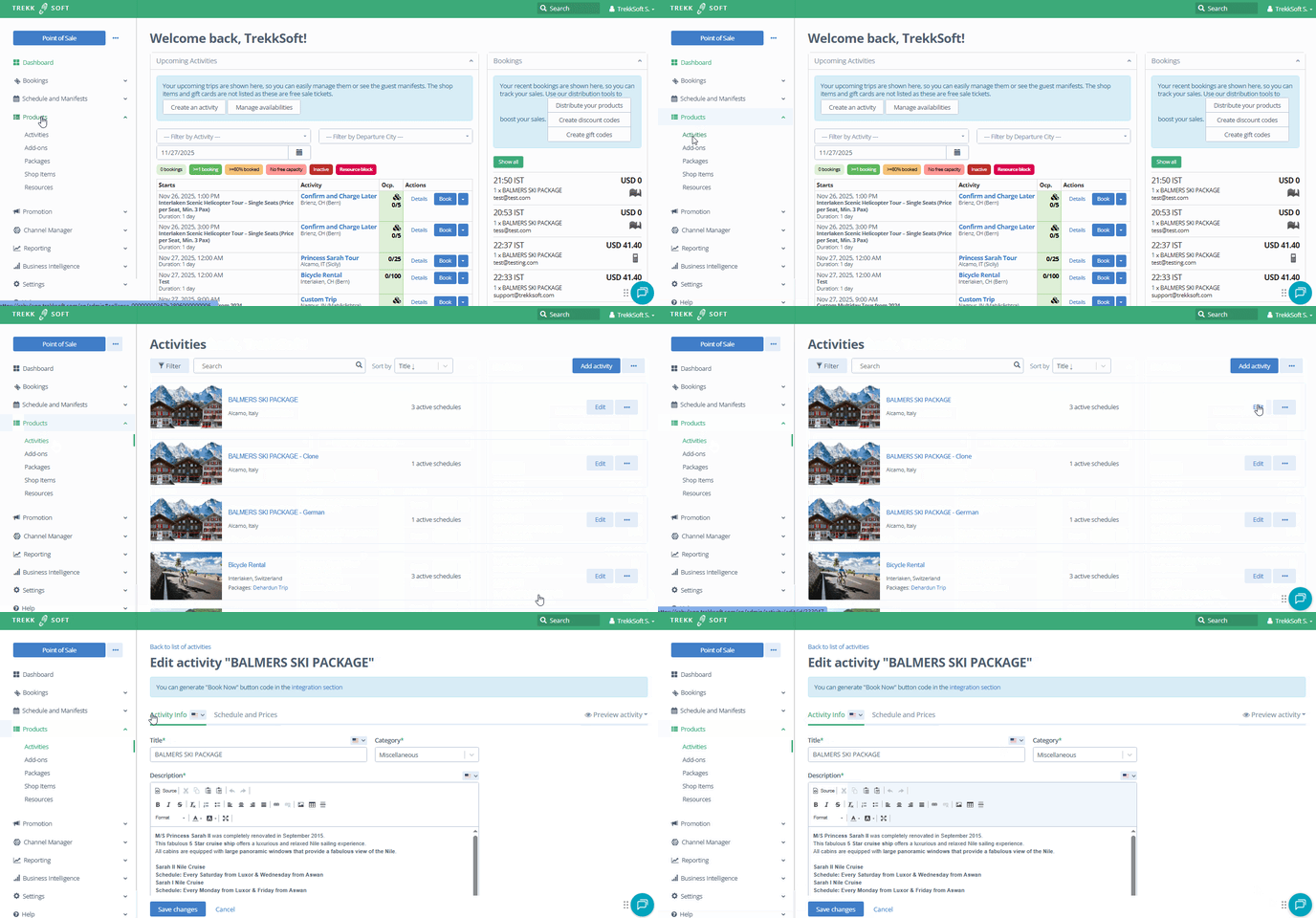
- Scroll to the bottom and open Advanced options
- Here you see the section Related activities
- Click Select activities to select the activities you wanna show.
- Select the activities from the drop down list in the pop up window.
- Finally click Save changes.
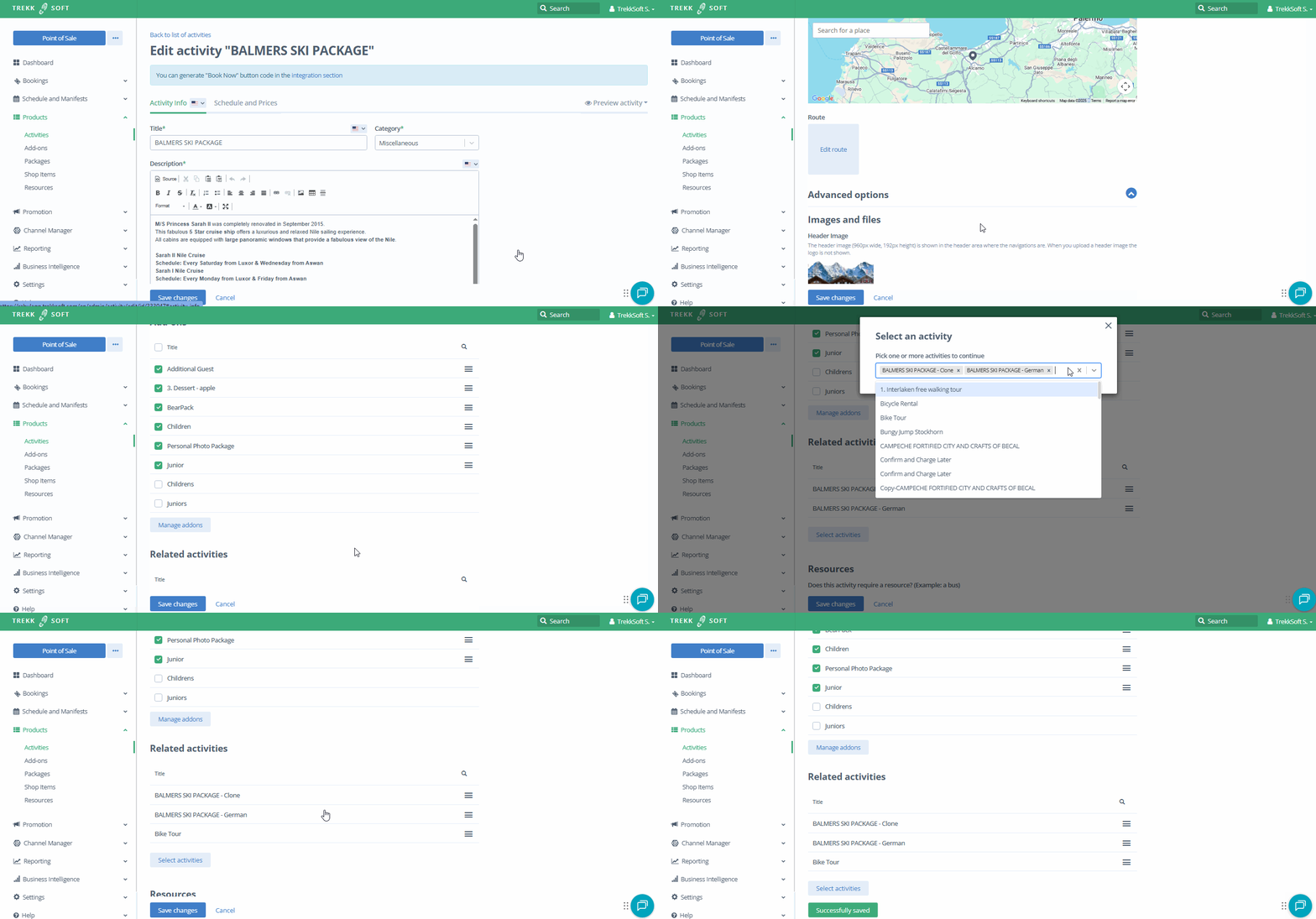
- Additionally, you can drag and drop activities to define the order.
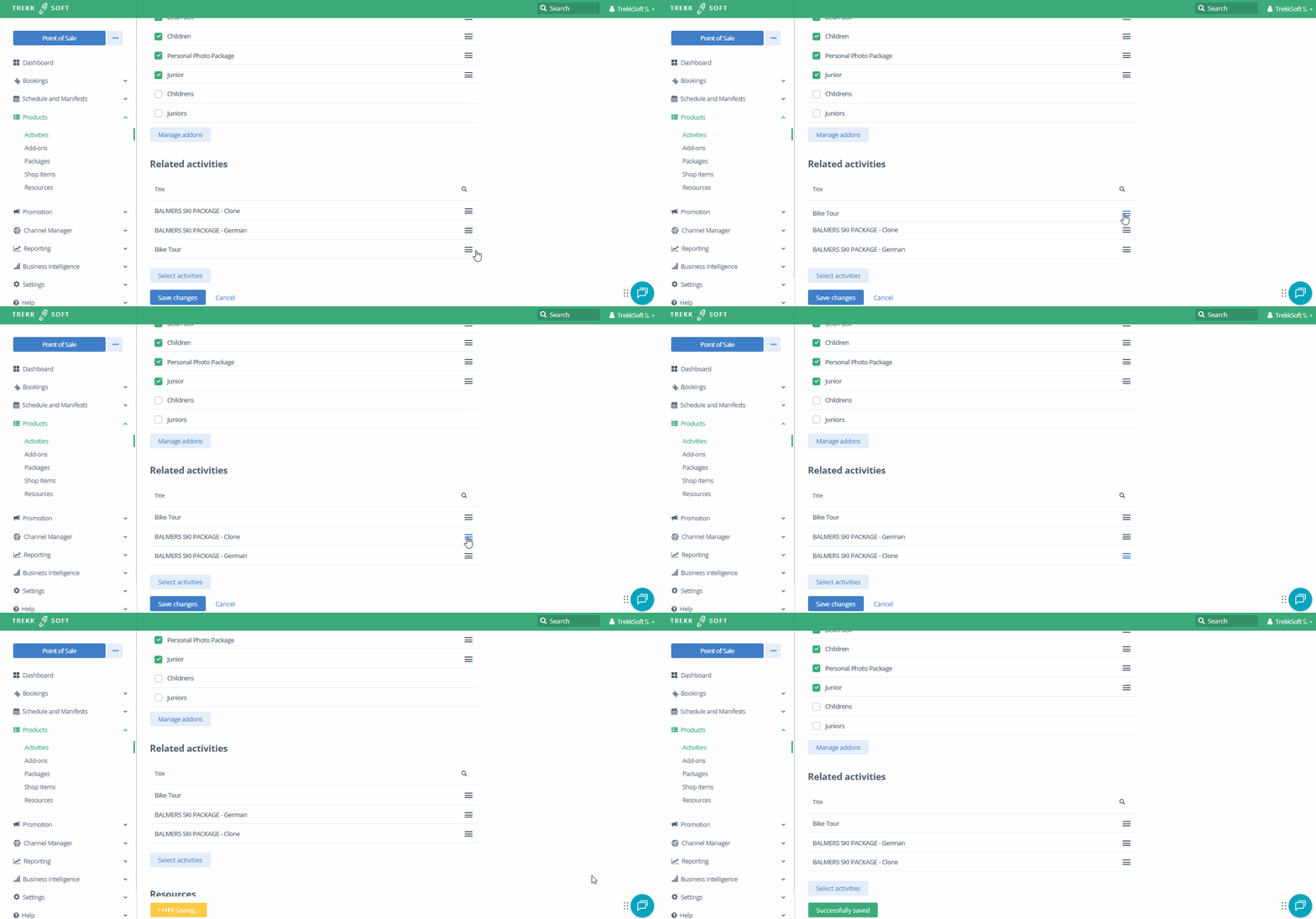
IMPORTANT ! The shown activities in the widget need an active schedule. Otherwise, they won't show.
________________________________________________________________________
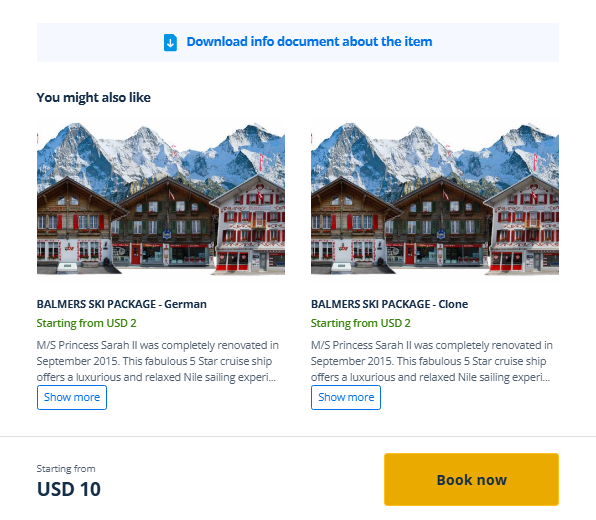
How does it look like in the Booking Widget
The related activities will appear on the Activity Details Page:
IMPORTANT !
- You wanna customize your widget's thank you page, then go here.
- With this your customers will immediately see other options to upgrade to.