![trekksoft-whitelogo.png]](https://support.trekksoft.com/hs-fs/hubfs/trekksoft-whitelogo.png?height=30&name=trekksoft-whitelogo.png)
Here's an overview of what we cover in this article:
________________________________________________________________________
Overview
The Point Of Sale or POS desk is another booking platform created to help you and your agents take bookings in an easier, simpler way. This POS Desk can be accessed via a web browser and was designed for both the laptop and tablet. Get the full introduction to the POS Desk here >>
________________________________________________________________________
Take a booking with the POS Desk
***
Step 1: Select a product
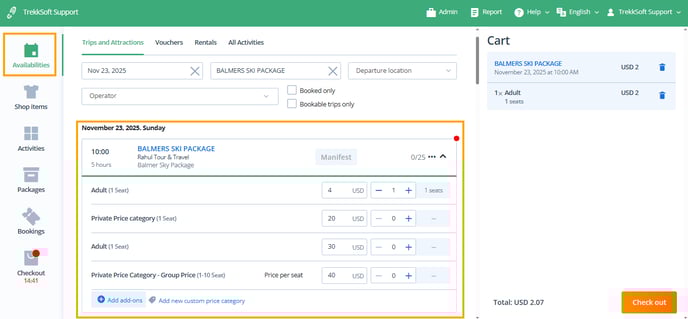
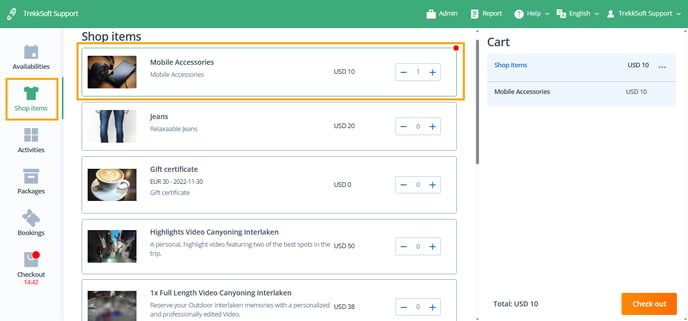
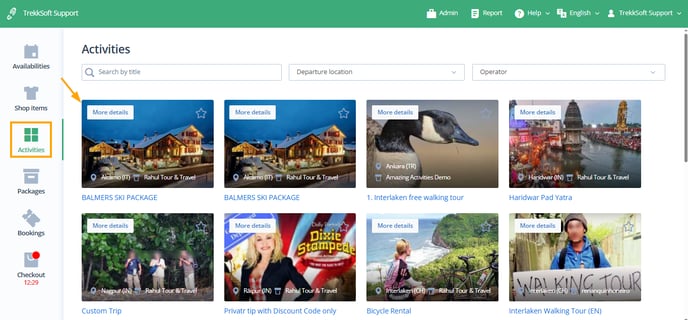
You can select an activity from Activities, a departure from Availabilities, or a shop item from Shop Items.
- From the Availabilities section, pick departure time for the activity, or select a voucher.
- For Shop Items, select the number of items you would like to add to your cart from the Shop Items section.
- For Activities, first, select the activity you would like to book, then select the departure time that best suits your guest from the Activities section.
Step 2: Add items to your cart
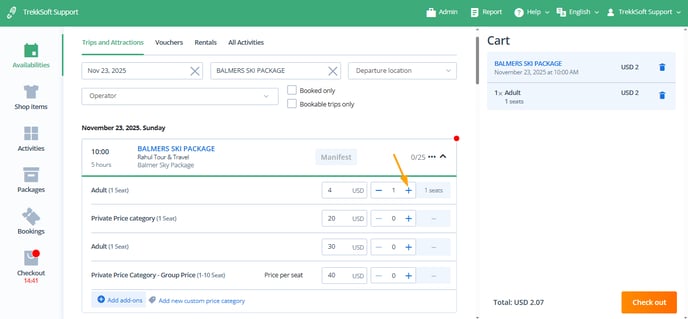
- After finding your activity, voucher, or shop item, select the number of guests or items you would like to add to the cart by clicking on the `+` or typing in the number.
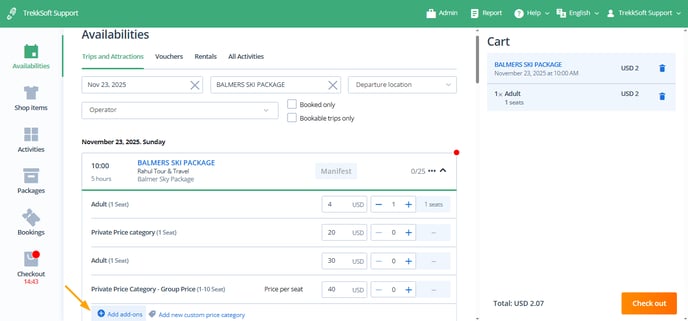
- You can also add Add-ons to your bookings:
-
- For Guest-Bound Add-ons, select the Guest then select "Add add-ons":
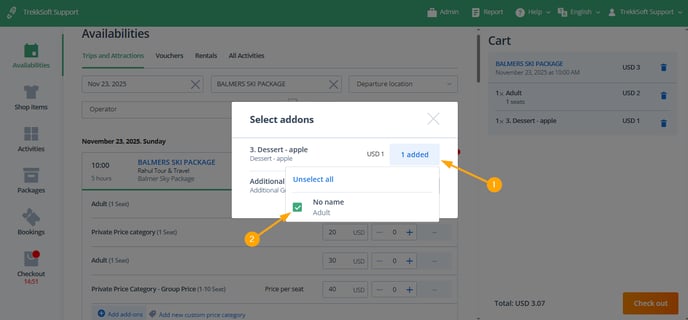
- For Single Item Add-ons, specify the number of items you want to add to the basket:

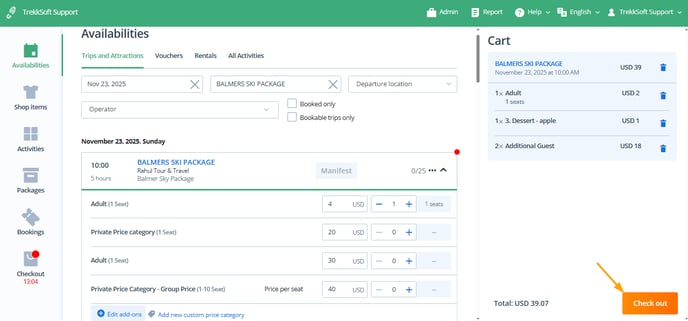
- When you're happy with your selection, click on Checkout at the bottom right corner.
Step 3: Add booking details
- At Checkout, you'll have an overview of everything you've added to your cart. Take this opportunity to go through the booking and modify anything if needed. You can add guest details, change agent, add a voucher code or package discount, or change the buying user.
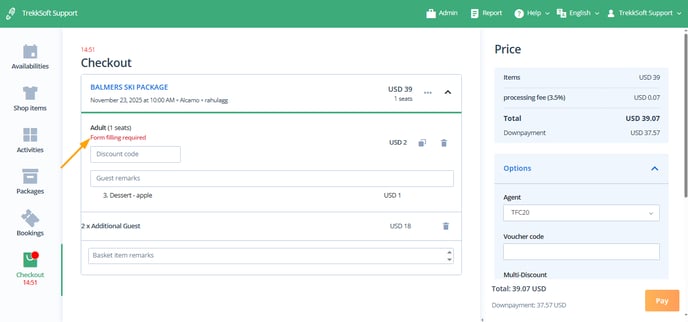
- When you're done, click on Pay in the bottom right.

Step 4: Select payment method
To get going, select one of three options:
- Reserve without payment (No payment made at the time of booking)
- Book as paid (Payment made in cash)
- Pay now (Payment made via the POS Desk with a credit card, only available via Payyo)
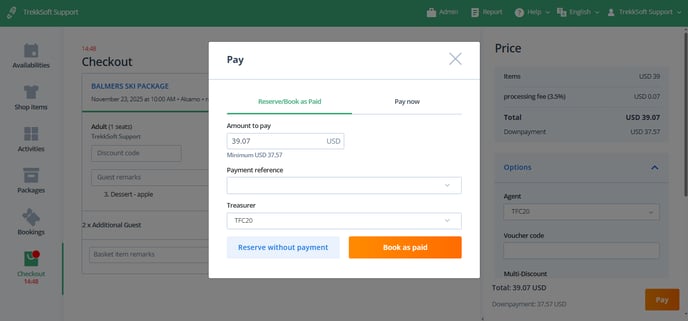
- Once the reservation or payment is complete, the booking will be confirmed and a new basket will be created.
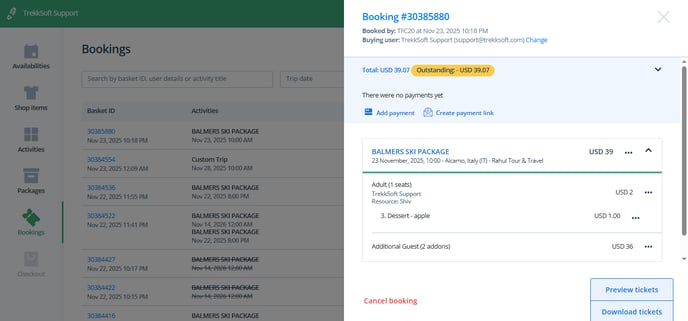
NOTE! Keep in mind that the payment methods available to the agent depend on the user permission you've set for the agent.
IMPORTANT! Agent Permissions are taken into account when using the POS desk. This means that if one of your agents is Isolated, for example, he/she won't be able to see other agent bookings, won't have access to the Guest Manifest, book custom trips, cancel guests, rebook guests, and so on. Learn about Users and Permissions here >>
________________________________________________________________________
Create a custom booking with the POS Desk
***
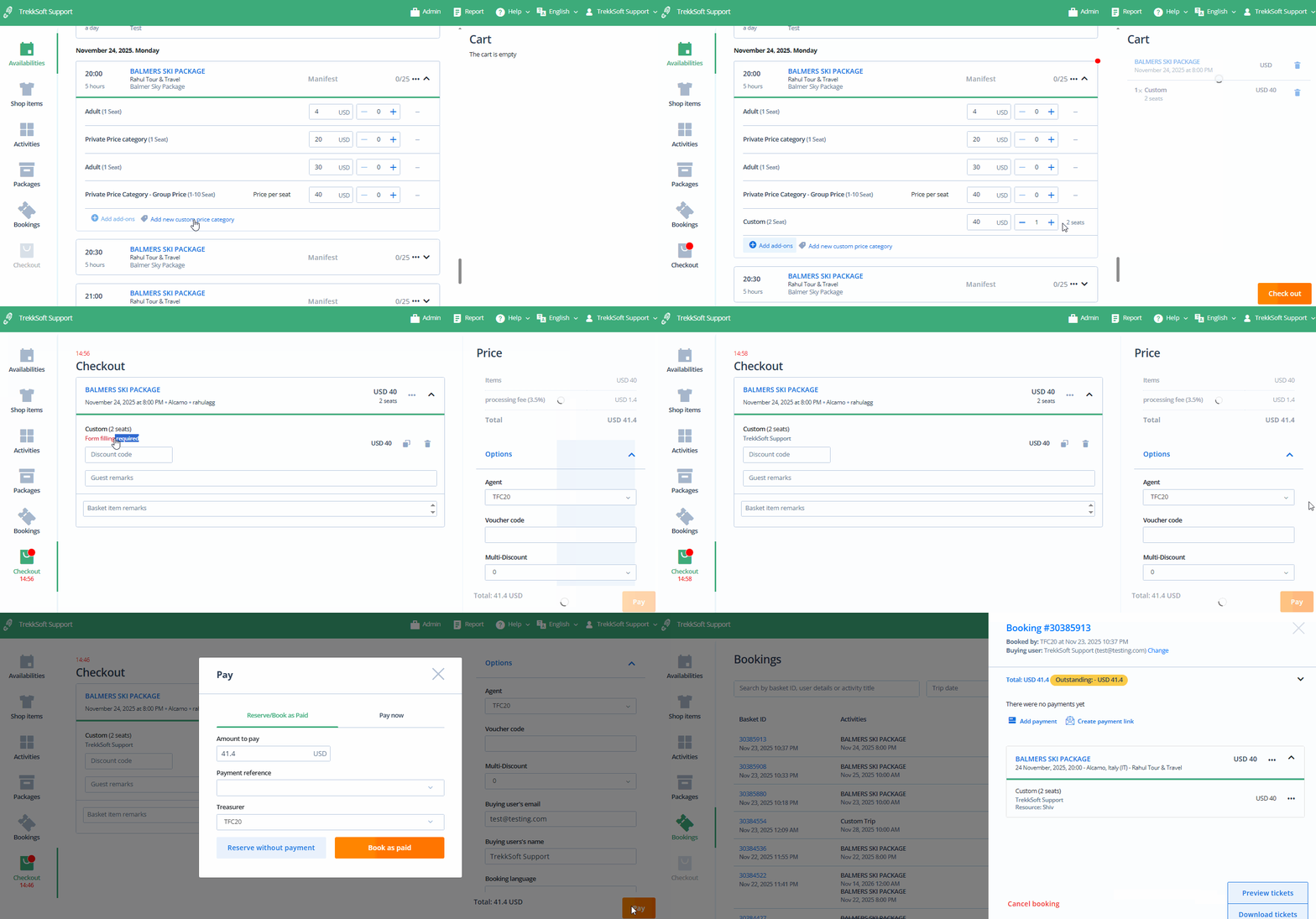
You can create custom bookings for your customers by creating custom pricing.
Step 1. Add a new custom price category
- Go to the desired schedule from the Availabilities section and Add new custom price category.
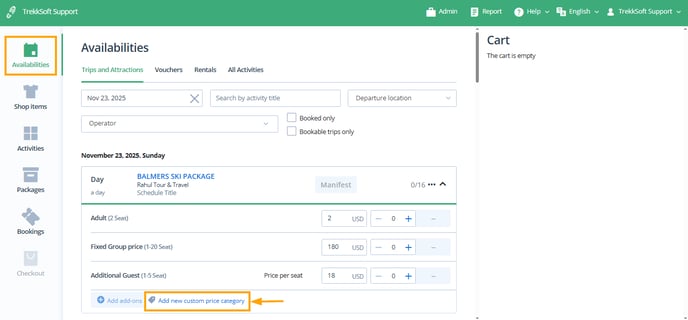
Step 2. Proceed with booking
See the tutorial below to learn more about how to add a custom price category and then proceed with booking: