![trekksoft-whitelogo.png]](https://support.trekksoft.com/hs-fs/hubfs/trekksoft-whitelogo.png?height=30&name=trekksoft-whitelogo.png)
Here is an overview of what we cover in this article:
_______________________________________________________
Overview
In TrekkSoft, you are able to customize your own Terms & Conditions, Privacy Policy and Cancellation Policy.
Using these options allows your guests to agree to any necessary terms and conditions and you can inform guests of your privacy policy and cancellation policy details.
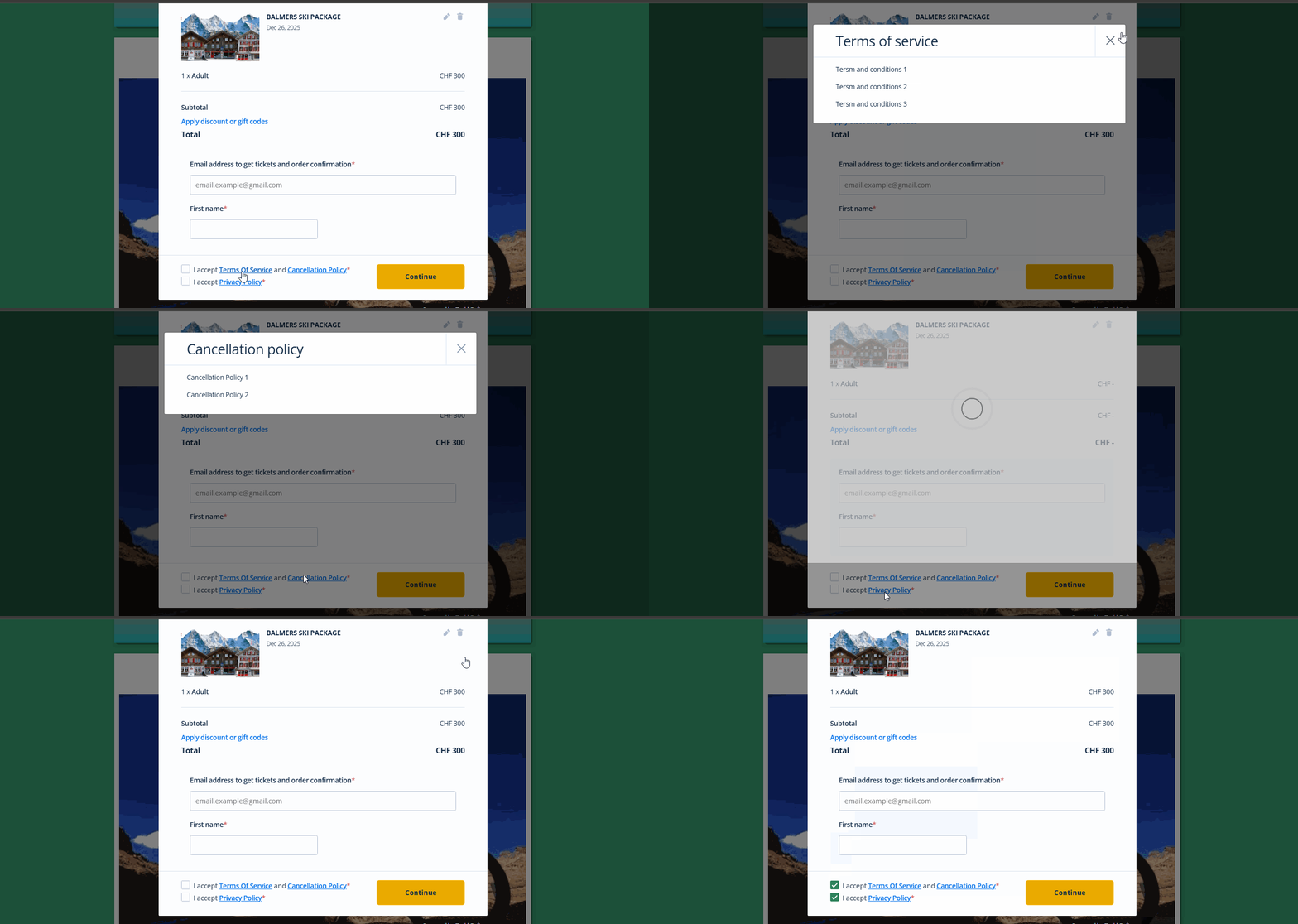
Each time a buyer attempts to make a booking, on the last page before making a payment, they will be asked to read and 'tick to accept' your Terms & Conditions, Privacy Policy and Cancellation Policy. If the checkbox is not ticked, the guest will not be able to proceed with the booking (as shown in the example below):
_______________________________________________________
How To Add Your Terms & Conditions, Privacy Policy and Cancellation Policy
To set your own Terms & Conditions & Privacy Policy, you need to add this information into your templates section. You can find your templates section by following these steps (or watch the video example below):
- In your Admin Desk, in the left menù, Select Settings > Product & Booking settings > Emails & Tickets.
- Once in the templates menu, the first tab is Terms & Conditions which is already selected.
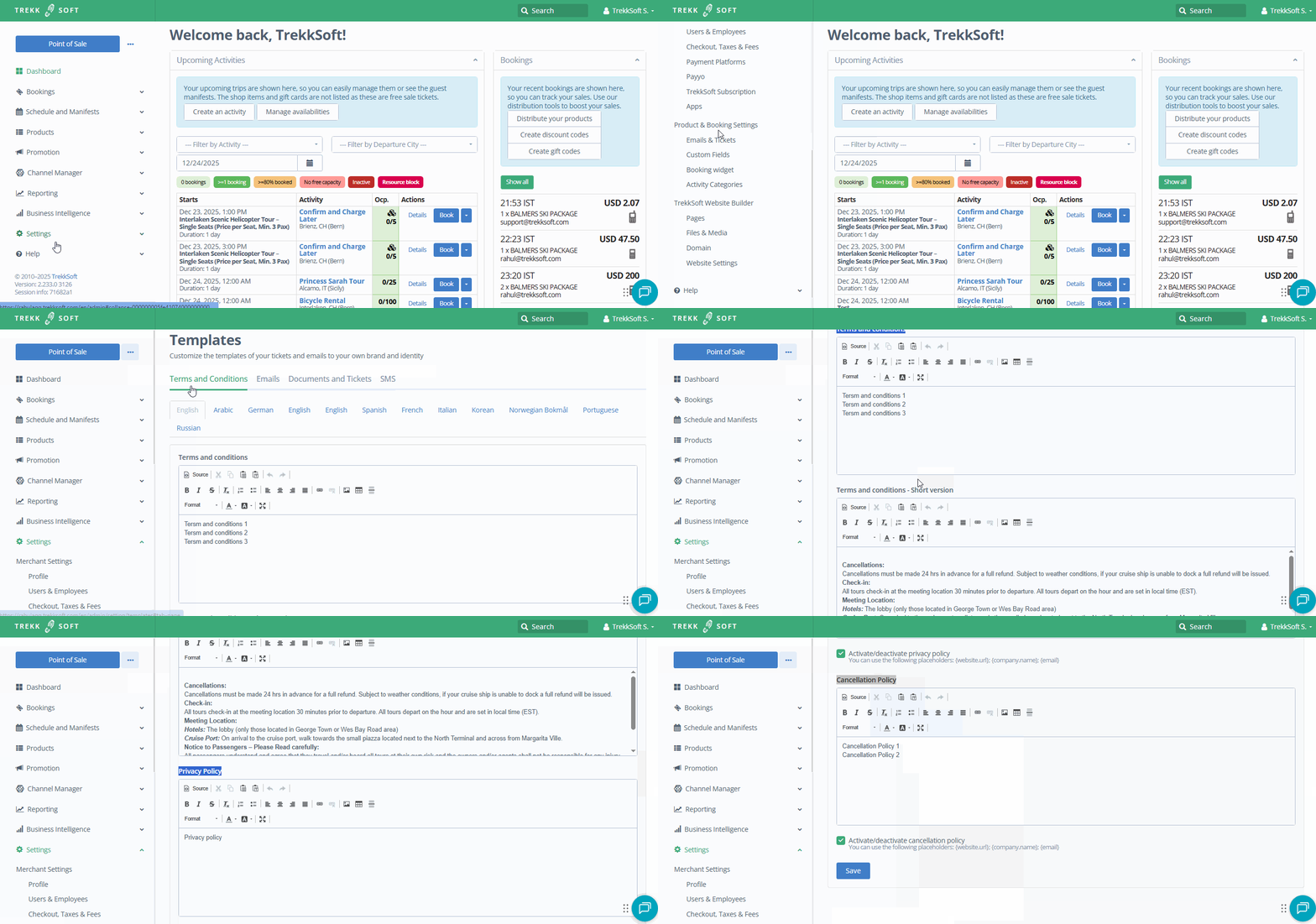
- Now that you are in the terms and conditions tab, You will see four text boxes available:
- Terms and Conditions (Long Version) - This is where you should add your FULL your terms and conditions
- Terms and Conditions (Short Version) - The short version shows as a text box which is printed on all tickets and booking confirmations by default.
- Tip: This text box doesn’t have to be used exclusively for Terms & Conditions. It can also be used to pre-empt Frequently Asked Questions e.g. please bring warm clothing or Please arrive 15 minutes before you start the time.
- Privacy Policy - Edit the full details of your Privacy Policy in this text box
- Cancellation Policy - Add your cancellation policy in this text box, then check the option below to activate it before the buyer finishes the booking.
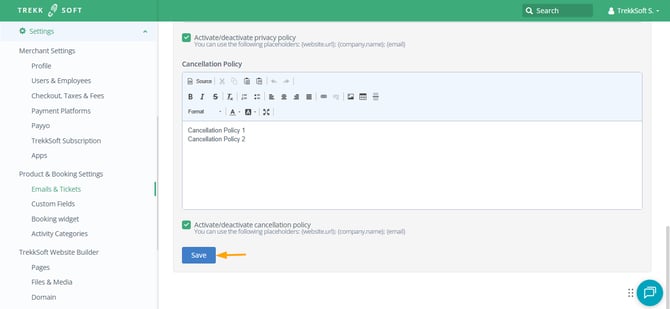
- Add the text in each of these four options and then scroll to the bottom of the page. Finally, click the Save button.
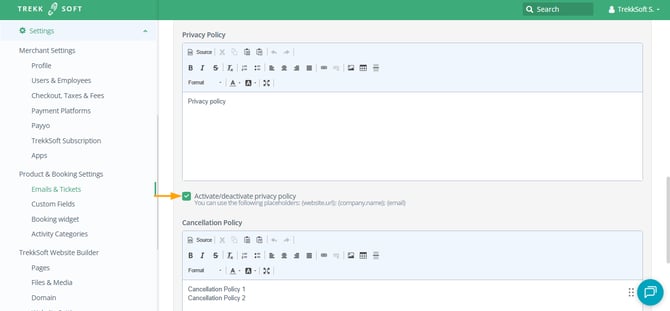
⚠️IMPORTANT: If you are using the privacy policy, make sure you activate the privacy policy option! (shown below)
_______________________________________________________
Additional Information
The Terms and Conditions (Long Version) and Privacy Policy will appear on the final booking page before the guest is directed to make a payment as explained here earlier in this article.
If Terms & Conditions (Long Version) text is added, then a checkbox will appear that the guest must tick to agree they have read the contents before they can proceed with any booking. The same scenario will occur for Privacy Policy. In the situation where both Terms & Conditions and a Privacy Policy are added, the guest will be expected to review both and must tick both to confirm their agreement.