![trekksoft-whitelogo.png]](https://support.trekksoft.com/hs-fs/hubfs/trekksoft-whitelogo.png?height=30&name=trekksoft-whitelogo.png)
Here is what we cover in this article:
- Your Twitter Profile
- How to set up Twitter account in TrekkSoft
- How to share your activities on Twitter
_______________________________________________________
Your Twitter Profile
With TrekkSoft, you can set up your Twitter profile to allow you to share your activities on your Twitter feed.
_______________________________________________________
How to set up Twitter account in TrekkSoft
To set up your Twitter Account in Trekksoft, follow these steps:
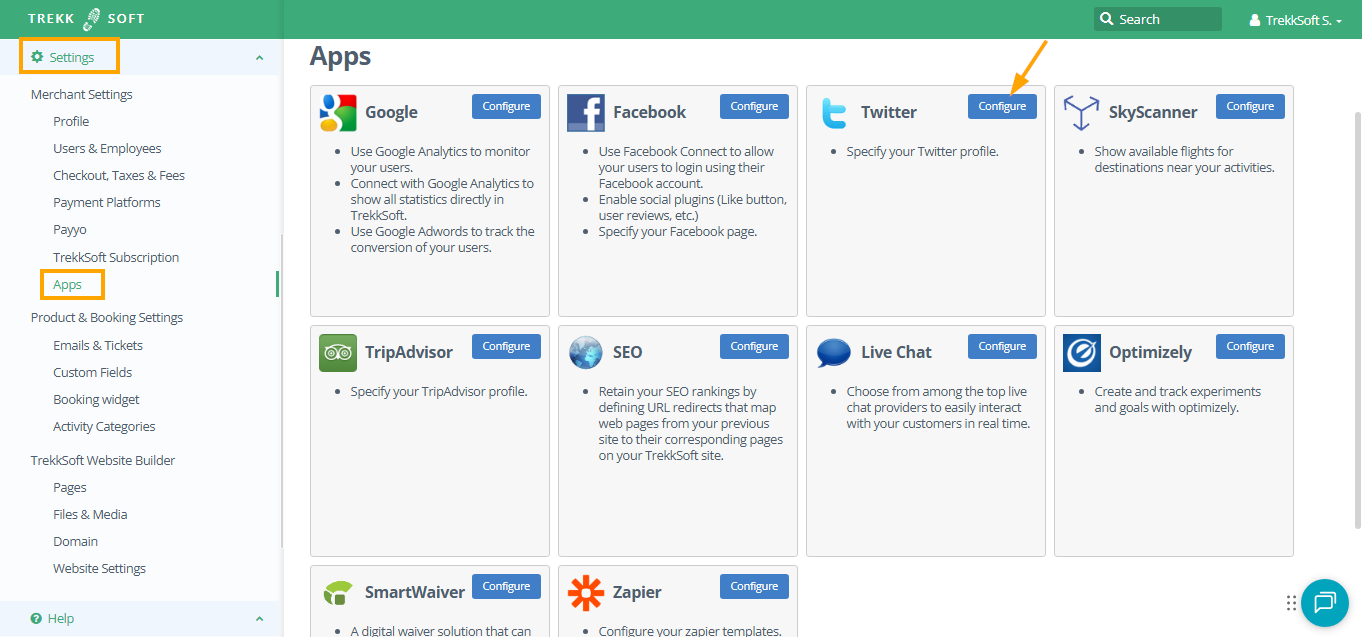
- Go To The Apps Page: In the left menù of your Admin Desk, navigate to Settings > Merchant Settings and select Apps from the drop-down menu. On the Apps page, search for “Twitter” and click on the Configure button.
- Enter Your Twitter Profile URL: Enter your Twitter Profile URL in the provided field (as shown below). Now click the Save button.

_______________________________________________________
How to Share your Activities on Twitter
Once you have completed the steps above, you're ready to share your activities on your Twitter feed.
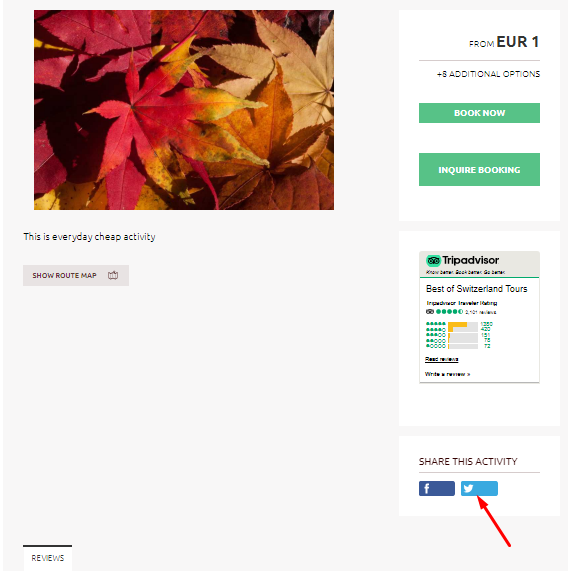
View one of your activities on your Trekksoft site and you will see the option to 'Share This Activity'. with a new Twitter button. Click the Twitter button and you will be redirected to your Twitter site. Follow the on-screen instructions to continue posting the activity to your Twitter feed (An example of the Share This Activity menu is shown below).