![trekksoft-whitelogo.png]](https://support.trekksoft.com/hs-fs/hubfs/trekksoft-whitelogo.png?height=30&name=trekksoft-whitelogo.png)
Here's an overview of what we cover in this article:
- What are Gift Cards?
- Where can customers use the Gift Card?
- How to Create Gift Cards
- Setup email confirmation for Gift Cards
- Setup Ticket template for Gift Cards
- Import your own Gift Cards
- Tips for Agents and Resellers
________________________________________________________________________
What Are Gift Cards?
Gift Cards represent a fixed sum of money that is deducted from a total basket. Gift Cards can be applied to tickets, Add-ons and Shop Items.
IMPORTANT NOTES !
- It's important to note that once the gift card is used on a basket, the value will drop to zero regardless of the transaction amount. To give customers their remaining balance, you’ll need to create a new gift card with the balance.
- Only one voucher can be used for each basket.
_______________________________________________________________________
Where Can Customers Use The Gift Card?
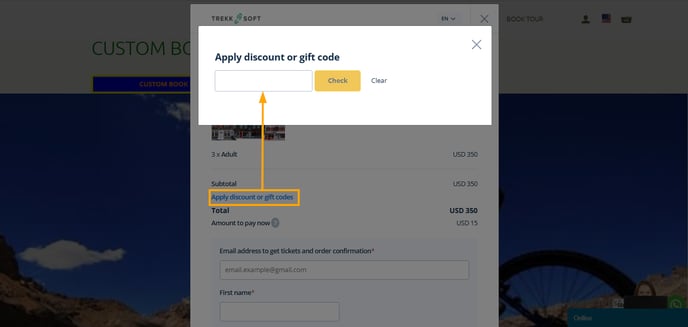
Your customers can use the Gift Cards during the booking process just before making a payment (see an example screenshot below when using Booking Widget):
How to Create Gift Cards
To create a Gift card codes, follow these steps:
- In your TrekkSoft Backoffice/Admin Desk, go to Promotion > Discount Codes and Gift Cards
- Now, select the Gift Cards tab at the top.
- In the top right corner, click on the Add gift code button
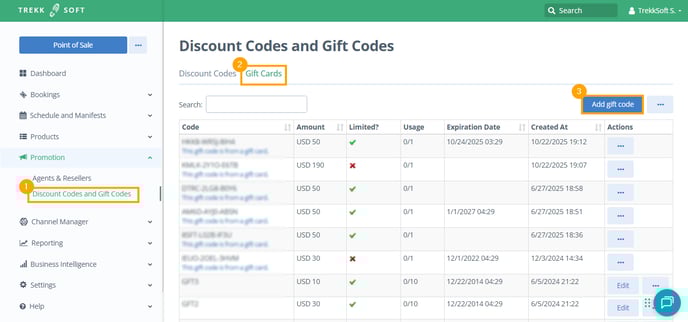
- Fill up all the required details and finally, click Save.

- Code* - Enter the code that you would like your customers to use.
- Amount* - Choose the amount that you wish to allow to be discounted.
- Maximal Usage* - Enter the number of times the discount code may be used.
- Expiration Date - You can enter the date this discount code may be used until.
- Limit to Activities - Select the tours and activity schedules you would like to associate this code with. If you would like this code to apply to all of your tours/activities, leave all of the checkboxes blank (all activities should show in the right-hand side box).
- Limit to Add-ons - Select which add-ons you would like to associate this code with. If you would like this code to apply to all add-ons, leave all of the checkboxes blank (all activities should show in the right-hand side box)
- Limit to Shop Items - Select which Shop Items you would like to associate this code with. If you would like this code to apply to all add-ons, leave all of the checkboxes blank (all activities should show in the right-hand side box)
- After completing all the necessary fields, click the Save button.
________________________________________________________________________
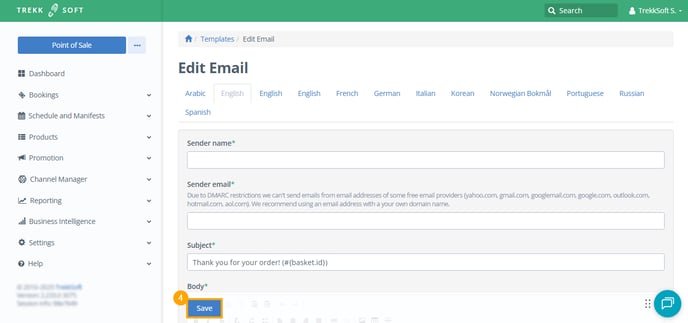
Setup email confirmation for Shop Item Gift Cards
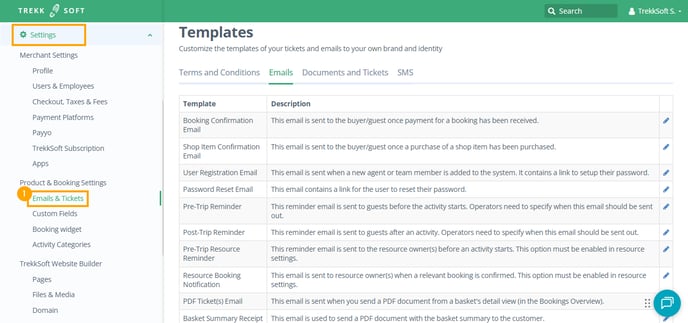
- In your TrekkSoft Backoffice/Admin Desk, navigate to Settings > Product & Booking Settings > Email & Tickets.
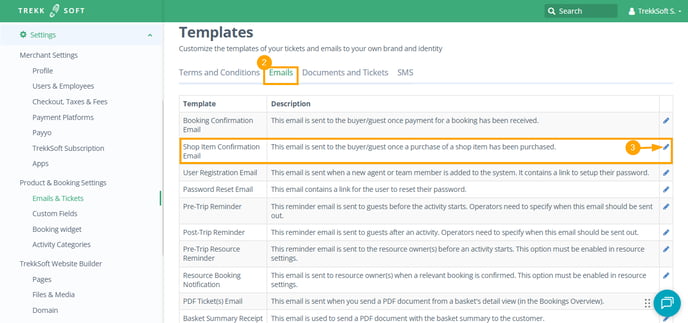
- From the window on the right, go to the Emails tab.
- Next, click the pencil icon next to Shop Item Confirmation Email.
- Customize the email (add email contents, add placeholder) and finally, click Save.
Setup Ticket template for Shop Item Gift Card
To customize the ticket template for Shop Item Gift Cards, follow the steps below:
- In your TrekkSoft Backoffice/Admin Desk, navigate to Settings > Product & Booking Settings > Email & Tickets.
- From the window on the right, go to the Documents and Tickets tab.
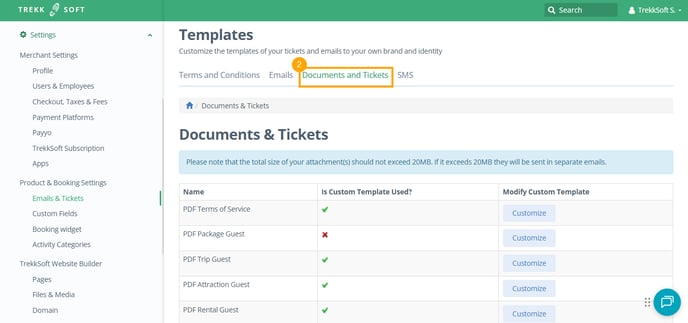
- Next, click the Customize button next to Shop Item Gift Card.

- To use the default template, click Create Copy button.
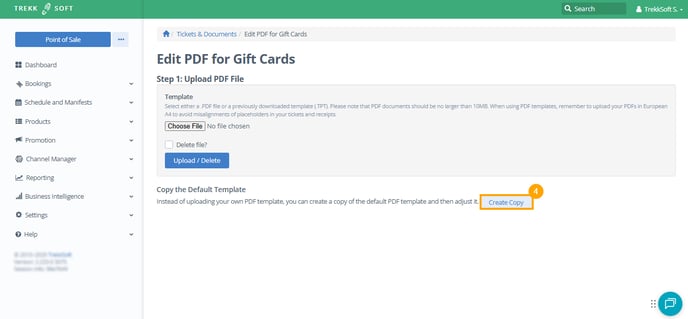
- Customize the template (add contents and placeholders to display details) and finally, click Save.

________________________________________________________________________
Import Your Own Gift Cards
You have the option to import your own gift codes via a CSV file. This can be particularly useful if you want to sell tours/activities on discount websites like Groupon.
To import gift codes via CSV, follow the steps below:
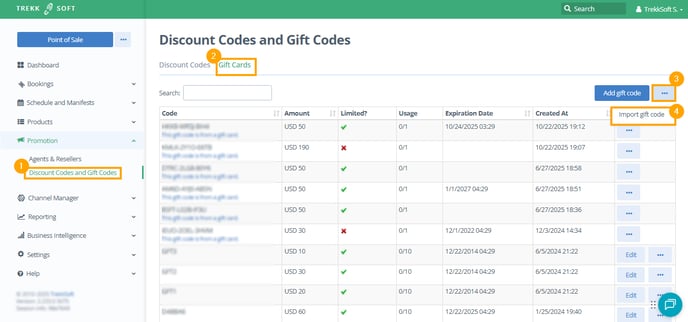
- In your TrekkSoft Backoffice/Admin Desk, in the left-hand menu, navigate to Promotion > Discount Codes and Gift Codes.
- In the window on the right, go to the Gift Cards tab.
- Click the three horizontal dots next to the Add gift code button.
- Next, click Import gift code.
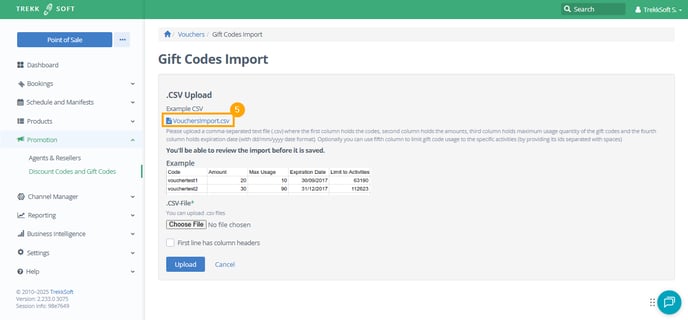
- Now, you'll see a template that you need to follow to import the gift codes. Click VouchersImport.csv to download the csv file.
- Create your Gift card file and save it.
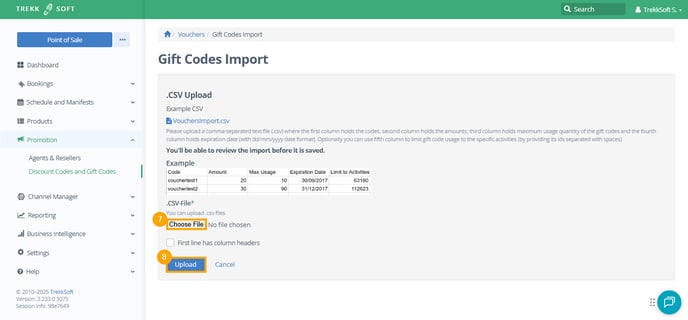
- Next, click Choose File to import the file you've created in step#6.
- Finally, click Upload.
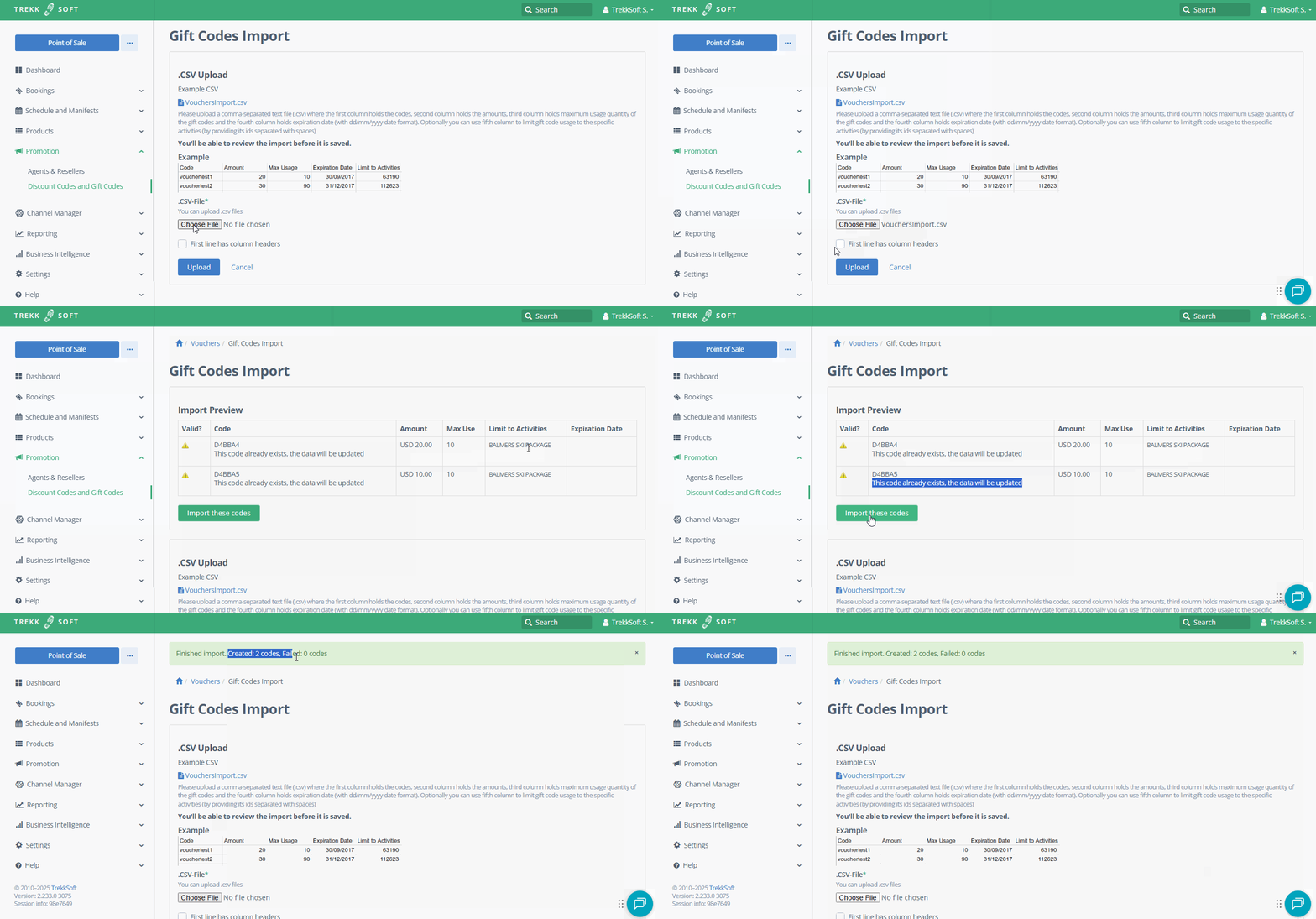
- Once you have imported the file, you will receive a preview of the codes that will be imported (see screencast below).
Import Gift Card CSV file
To use a CSV file, the CSV file must be formatted as shown below:

Each column is explained below:
- Code - Enter the code you wish to use for the discount e.g. 'SUMMERVOUCHER' or WINTERSALE'
- Amount - Enter the percentage amount you wish to allow for the discounted amount
- Max Usage - Enter the number of times you will allow this voucher to be used by ALL guests
- Expiration Date - Enter the expiration date of the discount (with dd/mm/yyyy date format) (Optional)
- Limit To Activities - If you want to limit codes to specific activities, add the activity ID here, separated with spaces (Optional)

Important Note for Importing Gift Card Codes
- Be sure to update the specific activity ID from your TrekkSoft account in the "Limit to activities" column of your CSV file. If you want the code to apply to all your activities, simply leave this field blank.
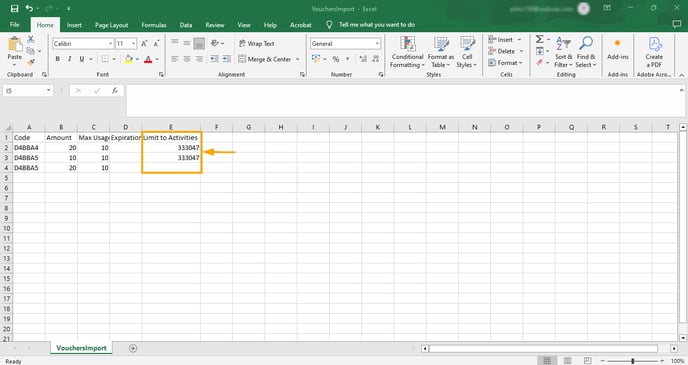 Otherwise, you'll see a "Cannot find activities" error message.
- If your first row contains column headers, please ensure the option "First line has column headers" is selected. This step helps the system correctly interpret your data and prevents potential import errors.
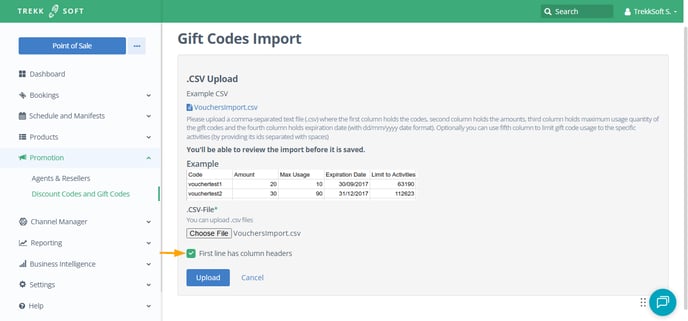 Otherwise, you'll see an error message saying "Cannot find activities."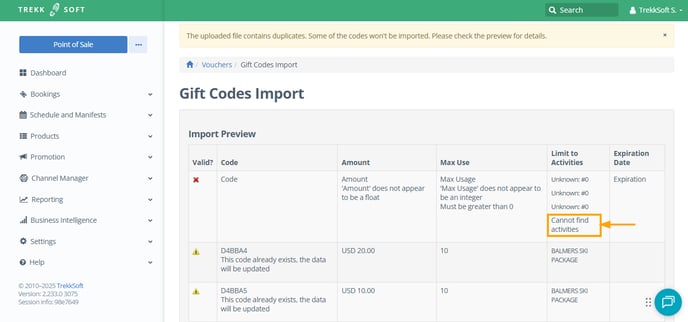
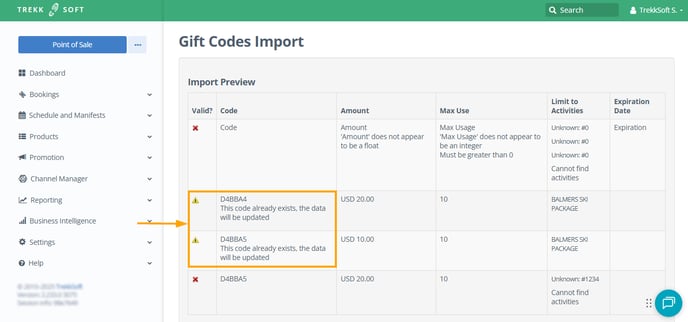
- If a code you are importing already exists in the system, you will see a warning message stating, "This code already exists, the data will be updated." In this case, the existing code will be updated with the new information you have provided, replacing the previous details.
________________________________________________________________________
Tips for Agents and Resellers
- An Agent name can double up as their "Agent Code".
- When a customer is referred to you by an Agent, the customer must use the agent's unique code when purchasing from your website so that you can track referrals.
- We recommend creating a Discount Code that matches the Agent Code to create an incentive for customers to use the code.