![trekksoft-whitelogo.png]](https://support.trekksoft.com/hs-fs/hubfs/trekksoft-whitelogo.png?height=30&name=trekksoft-whitelogo.png)
Here's an overview of what we cover in this article:
_______________________________________________________
Overview
There will be occasions where you need to reach out to your guests last-minute such as for a change in start time, a meeting point change or advising guests a guide has fallen ill and you need to cancel the activity. In these scenarios, you can send a notification email through Trekksoft.
_______________________________________________________
How does it work?
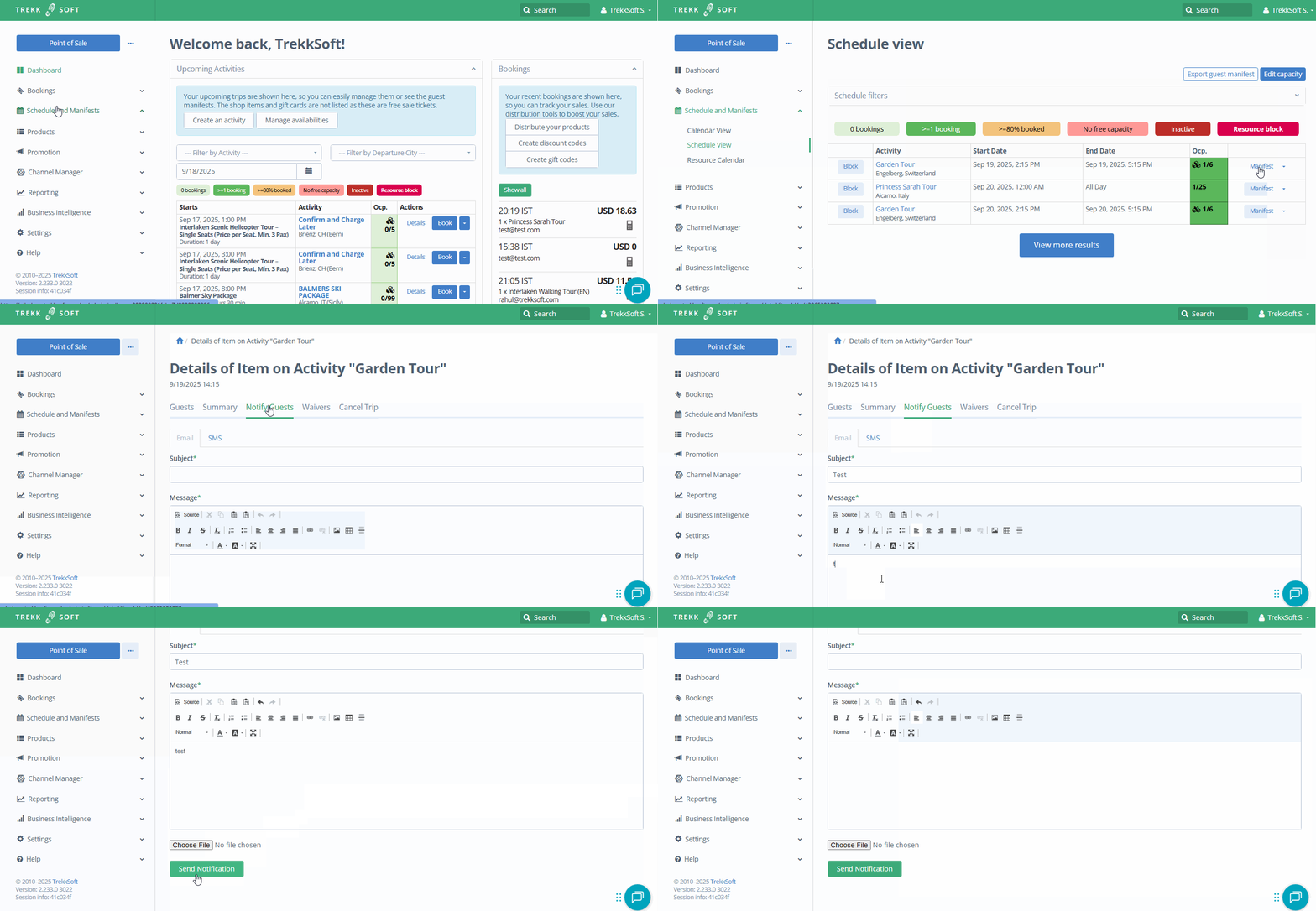
In situations where you need to notify guests, you can use the Notify Guests option to send an email to your guests. To locate this option, follow these steps:
- In your Admin Desk, in the left-hand menu, go to Schedules and Manifests.
- Then you have a choice of either 'Calendar View' or 'Schedule View'. You can notify guests from either view and the actions are the same.
- Find the activity you wish to notify guests on and click on the name of the activity. Once clicked, you will be taken to the Guest Manifest. At the top of the manifest, click on the Notify Guests tab.
NOTE! Make sure to collect email address of the buyer to notify guests via email notification.
_______________________________________________________
Notify Guests Tab
Now you are in the Notify Guests tab. To notify your guests, complete the fields in this section.
Email Notification
- Subject - Add a subject to your email on what the topic is about.
- Message - Enter the contents that you wish to notify your guests of e.g. a change in the start time, location, etc.
- Choose File - Browse for a file if you wish to add any attachments to the notification email.
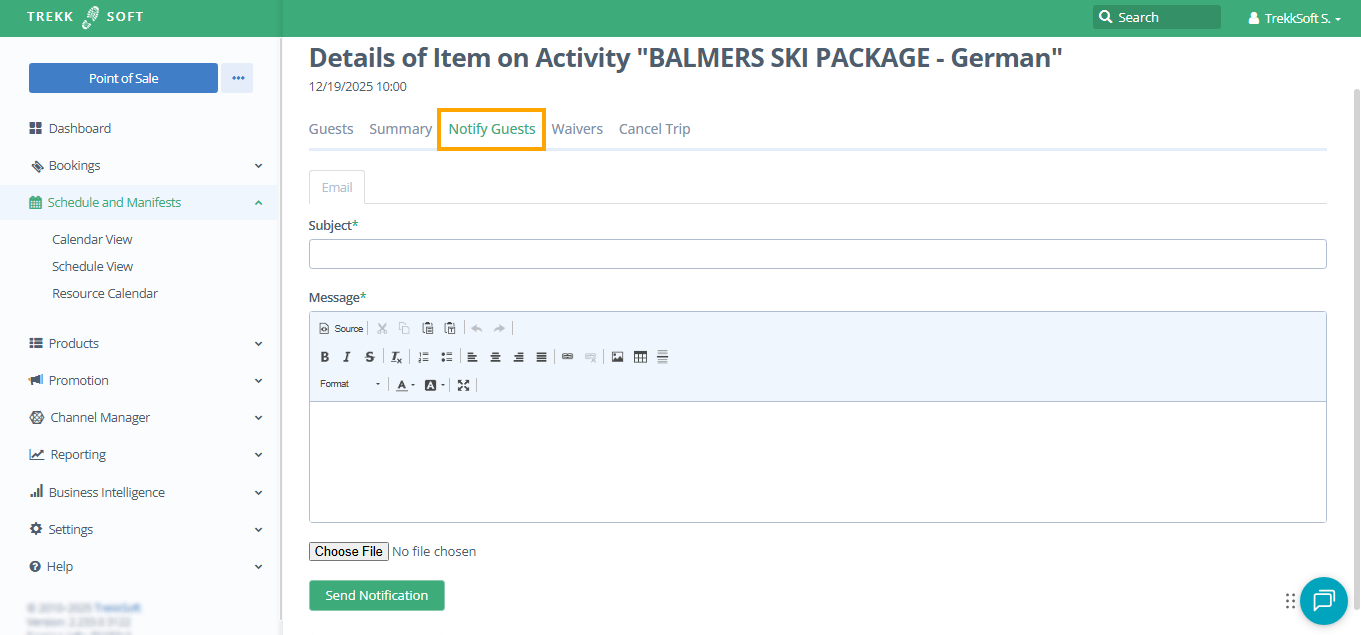
Once you have completed the necessary fields, click the Send Notification button to send an email notification to ALL guests on this activity.