![trekksoft-whitelogo.png]](https://support.trekksoft.com/hs-fs/hubfs/trekksoft-whitelogo.png?height=30&name=trekksoft-whitelogo.png)
Here is an overview of what we cover in this article:
_______________________________________________________
Overview
You can customize most of your TrekkSoft websites such as colors, fonts, and styles. You can also upload your logo to replace TrekkSoft’s logo which will appear as the “default” logo in the top left corner.
_______________________________________________________
How to customize Page
Start by heading to the left navigation menù and clicking on Settings. Then, navigate to TrekkSoft Website Builder > Website Settings.
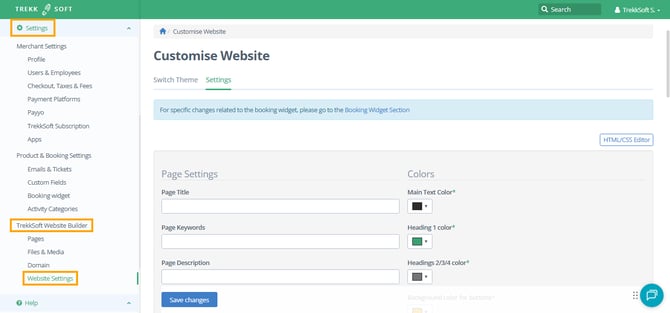
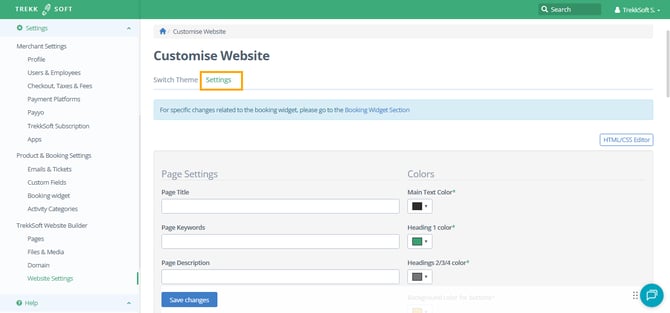
Here, in Settings, you’ll find Page Settings, Colors, Logo & Images, and Fonts.
_______________________________________________________
Page Settings
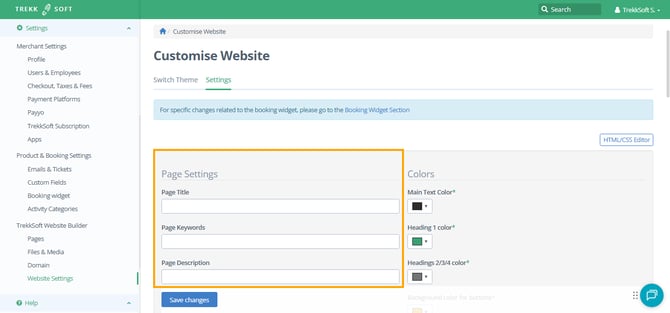
Here, you’ll be able to edit settings relevant to your web pages and how they are perceived in tabs and on search engines. The page settings are allocated to all pages of your website and will be the standard information for your individual pages unless you write unique titles, keywords, and descriptions for individual pages (when you create your website pages with our builder).
Page Title [required] - The company name to appear in the top navigation
Page Keywords - Enter keywords that relate to your business and what you do.
Page Description - Enter page description here.
_______________________________________________________
Colors
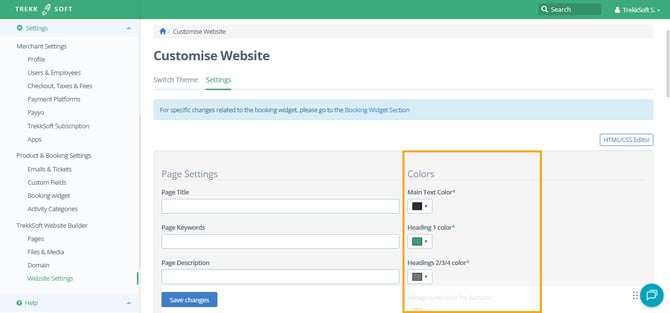
- Click on the color boxes and a color picker will appear. Select a color you like then double click or press “Enter”.
- Alternatively, you can also enter your HEX color code and hit “Enter” on your keyboard. When you are happy with your color selection, scroll down and click Save.
_______________________________________________________
Logo & Images
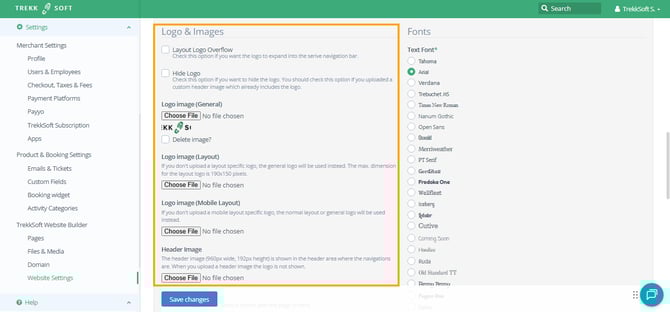
- Layout Logo Overflow - Check this option if you want the logo to be shown in a bigger format on your website’s top menu.
- Hide logo - Check this option to hide the logo. You should do this if you’ve uploaded a custom header image that already includes the logo.
- Logo Image (General) - This is the logo that appears whenever a placeholder is used, for example on your PDF tickets or on the top left corner of your website. If a logo is not used, your company's name will be used instead.
- Logo Image (Layout) - Here you can upload an alternative logo that will be used instead of the general one. If you didn't upload a layout-specific logo, the general logo will be used instead. The dimensions for the layout logo are 190x150 pixels.
- Logo Image (Mobile Layout) - This is the logo that will appear on your mobile pages. If nothing is uploaded here, the normal layout or general logo will be used instead.
- Header Image - If you’re using TrekkSoft’s website builder, this image will be used in your headers.
- Footer image - If you’re using TrekkSoft’s website builder, this image will be used in your footers.
- Favicon - A favicon is the little icon displayed in the browser next to the page title. Please upload an. ICO file. You can easily convert normal images to icons at http://convertico.com/.
_______________________________________________________
Fonts
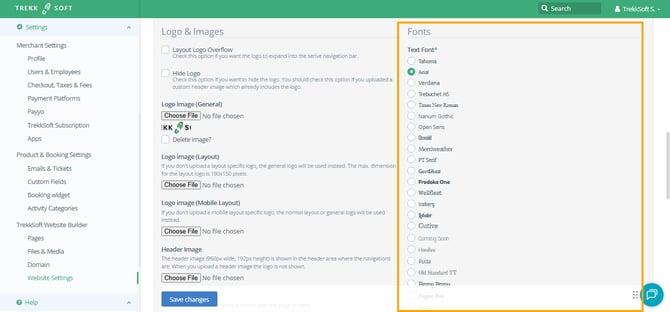
To change your fonts, simply select the font you would like to use. You can select both your regular text font and the font that will be shown in the header for each page.
_______________________________________________________
Save changes
Make sure to click Save changes, once you're done with the changes you want for your website.
NOTE ! Depending on which theme you choose to apply to your website, there will be different elements on your website that you can customize.
Learn more about how to switch the website theme here.