![trekksoft-whitelogo.png]](https://support.trekksoft.com/hs-fs/hubfs/trekksoft-whitelogo.png?height=30&name=trekksoft-whitelogo.png)
Here is an overview of what we cover in this article:
_______________________________________________________
Overview
If your activity is now created but you don't wish to offer the activity on specific days or specific times, Trekksoft has got your covered for blocking out the availability on this date.
There are multiple ways you can do this! Let's go through the three options available to you:
_______________________________________________________
Schedule View
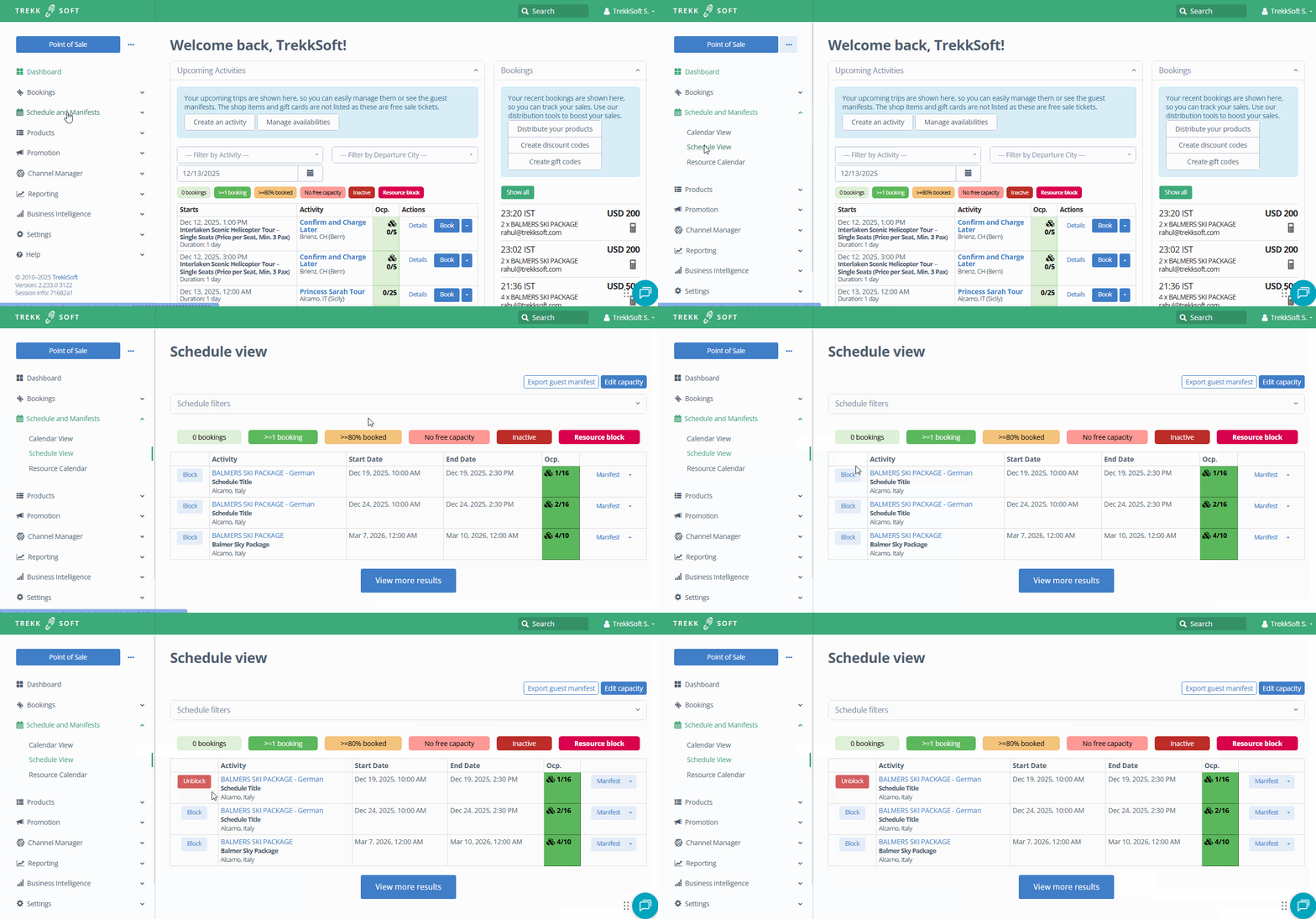
- In your Admin Desk, on the left-hand menu, click on Schedule and Manifests > Schedule View.
- Locate the activity date/time you wish to block and click the Block button on the left side on the activity (screencast shown below)
 _______________________________________________________
Dashboard
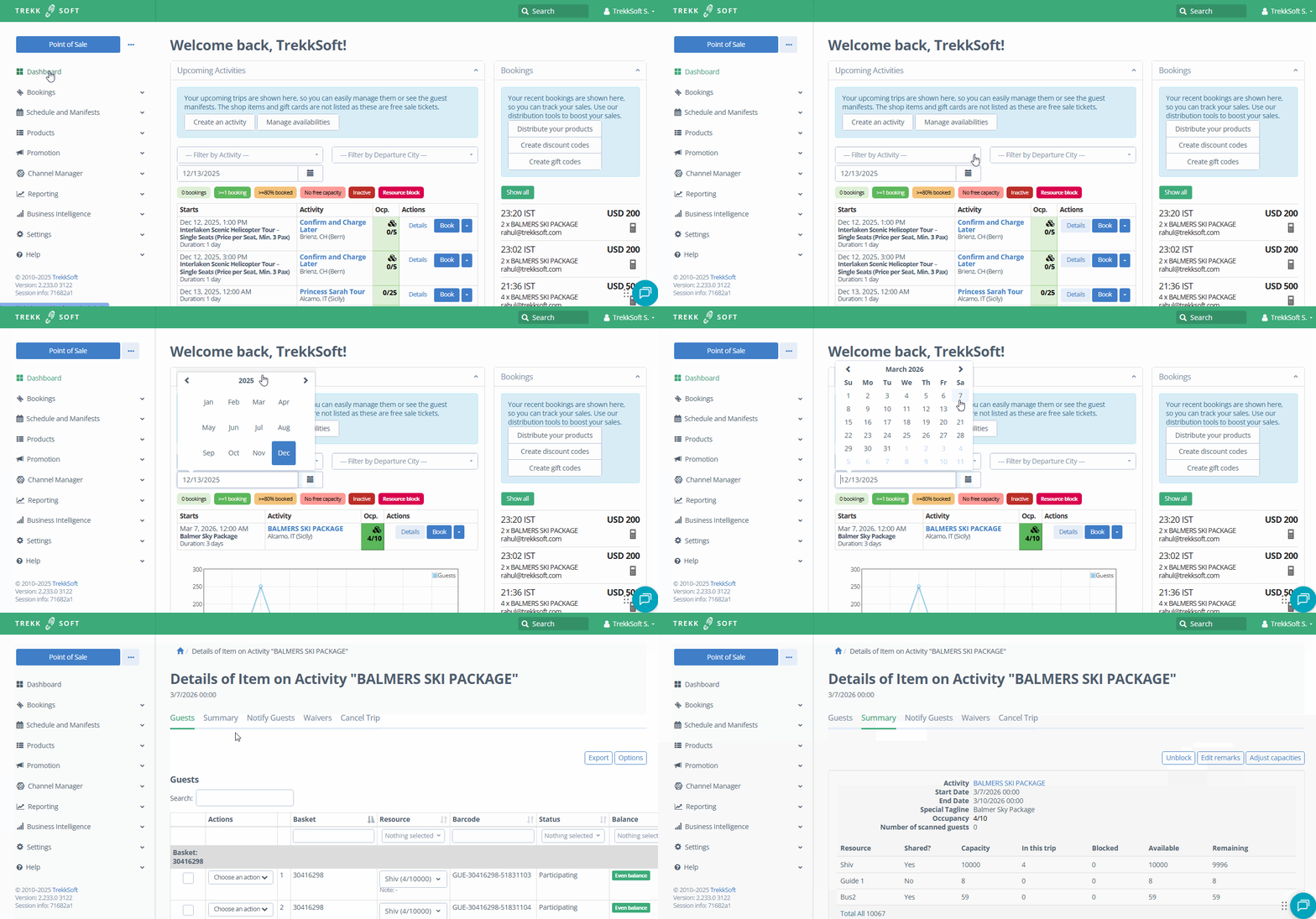
- In your Admin Desk, filter for the related trip and on the right-hand side, click on the Details button. You will be redirected to the Guest manifest
- Once in the Manifest, at the top, select the Summary tab
- In the Summary tab, on the right-hand side, click the Block button (screencast example shown below):
_______________________________________________________
Schedule Exceptions
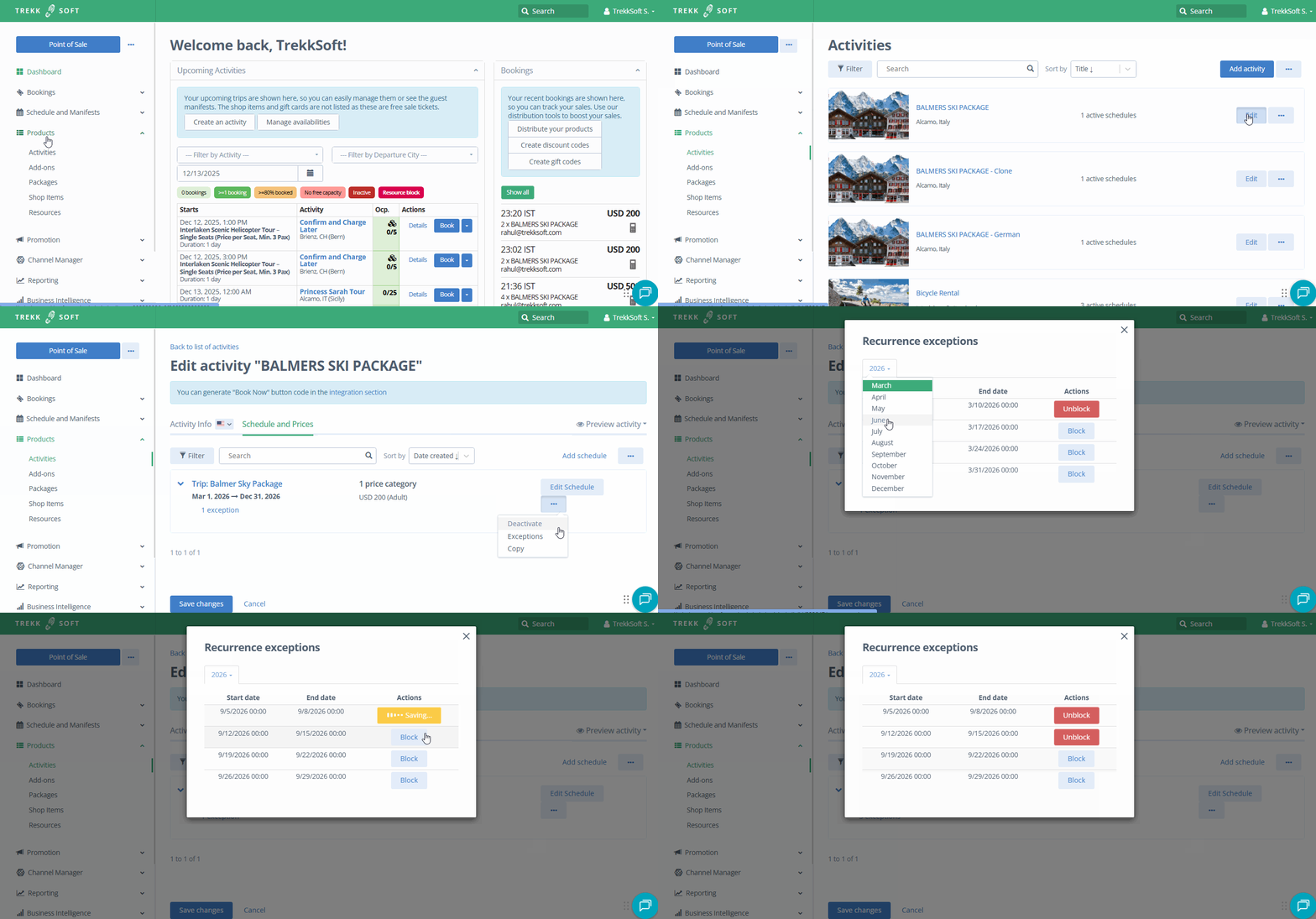
- In your Admin Desk, on the left-hand menu, click on Products > Activities
- In the Activities page, Select which activity the date/time is included with and on the right-hand side, click the Edit button
- In the activity, in the top menu, go to the Schedule and Prices tab
- Locate the correct schedule and click the
 button and from the drop down, select the Exceptions option and a popup window will open.
 - Now you can select the date(s)/time(s) you wish to block (screencast example shown below):
NOTE! At the top of the popup window, you can click the year and choose the appropriate month
NOTE When blocking a date or time, It will also be blocked for all connected resellers