![trekksoft-whitelogo.png]](https://support.trekksoft.com/hs-fs/hubfs/trekksoft-whitelogo.png?height=30&name=trekksoft-whitelogo.png)
Here is what we cover in this article:
_______________________________________________________
Your X Profile
With TrekkSoft, you can set up your X profile to allow you to share your activities on your X feed.
_______________________________________________________
How to set up X account in TrekkSoft
To set up your X Account in Trekksoft, follow these steps:
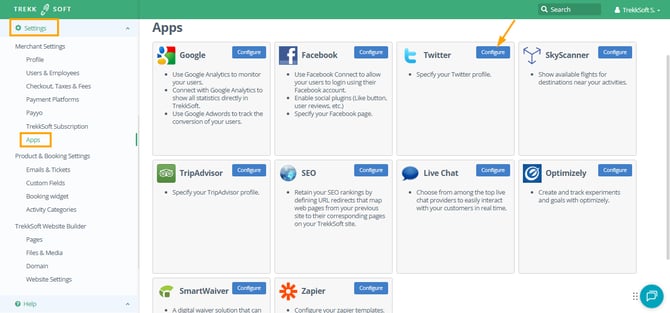
- Go To The Apps Page: In the left menù of your Admin Desk, navigate to Settings > Merchant Settings and select Apps from the drop-down menu. On the Apps page, search for “X” and click on the Configure button.
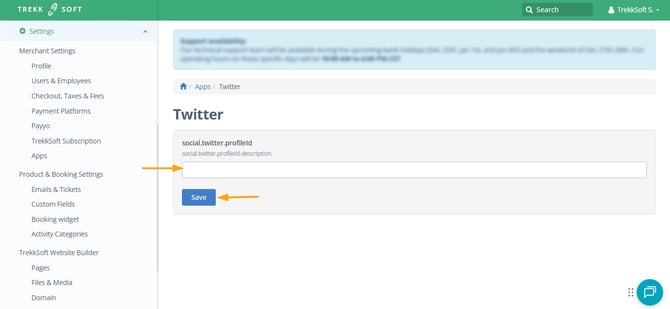
- Enter Your X Profile URL: Enter your X Profile URL in the provided field (as shown below). Now click the Save button.
_______________________________________________________
How to Share your Activities on X
Once you have completed the steps above, you're ready to share your activities on your X feed.
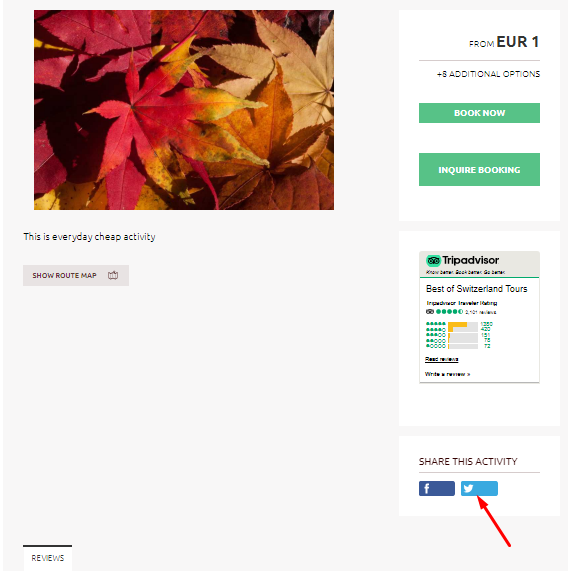
View one of your activities on your Trekksoft site and you will see the option to 'Share This Activity'. with a new X button. Click the X button and you will be redirected to your X site. Follow the on-screen instructions to continue posting the activity to your X feed (An example of the Share This Activity menu is shown below).