![trekksoft-whitelogo.png]](https://support.trekksoft.com/hs-fs/hubfs/trekksoft-whitelogo.png?height=30&name=trekksoft-whitelogo.png)
Last update [November 25, 2025]
If you wish to enable international currencies, you can add or remove currencies in the system for any currency you wish to accept from online payments. To enable/disable a currency, you can follow these steps:
- In your Admin Desk, go to your Settings > Merchant Settings > Profile. Then, click on the Currencies tab on the right-hand side.
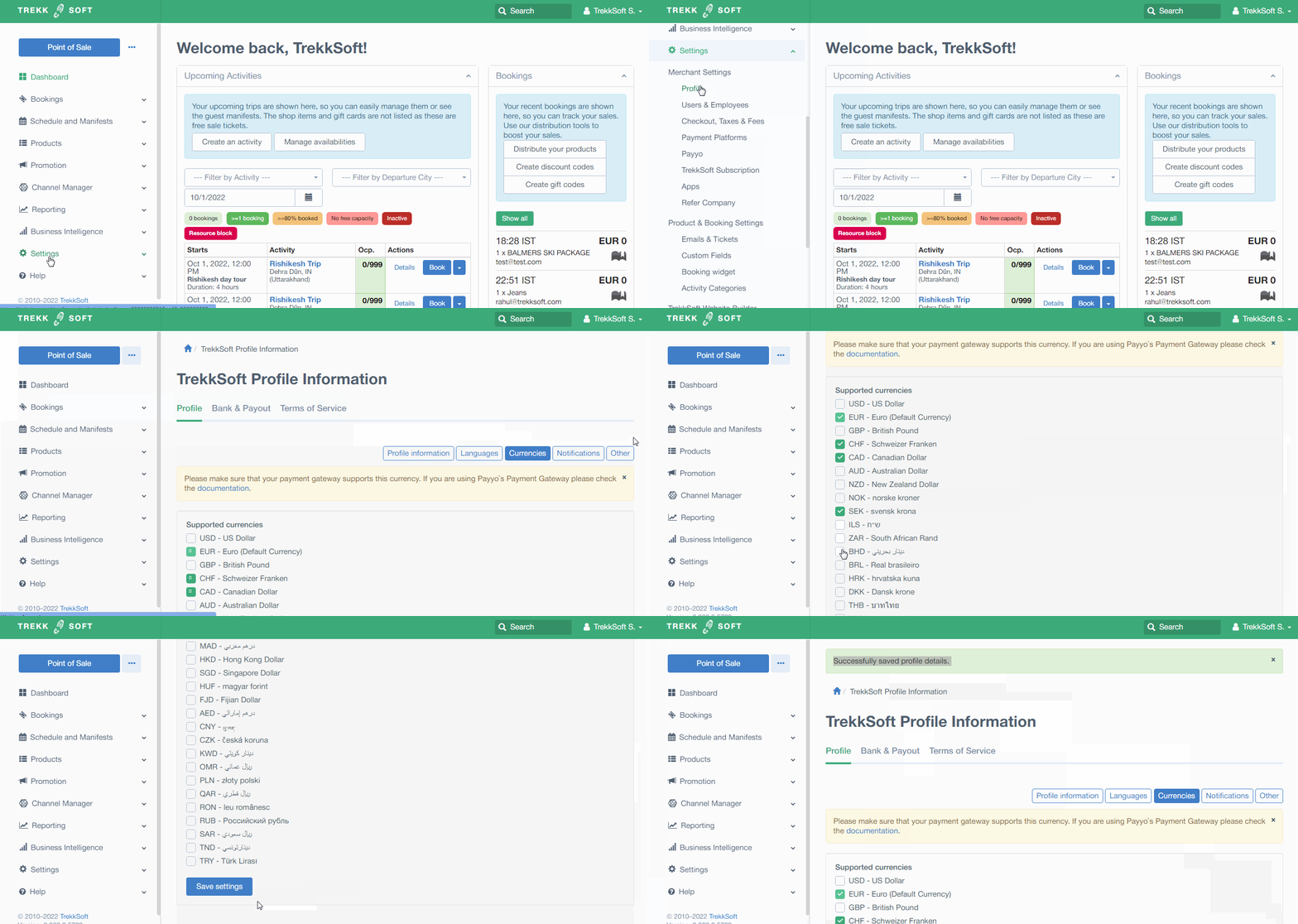
- Select the currencies you wish to accept payments for by ticking the box next to each of the currencies.
- Once you have selected all the currencies you wish to use, click the Save Settings button.
With Payyo, you can accept payments in 33 currencies!
-
USD – United States Dollar
-
EUR – Euro
-
GBP – British Pound Sterling
-
CHF – Swiss Franc
-
CAD – Canadian Dollar
-
AUD – Australian Dollar
-
NZD – New Zealand Dollar
-
NOK – Norwegian Krone
-
SEK – Swedish Krona
-
ILS – Israeli New Shekel
-
ZAR – South African Rand
-
BHD – Bahraini Dinar
-
BRL – Brazilian Real
-
DKK – Danish Krone
-
THB – Thai Baht
-
MXN – Mexican Peso
-
JPY – Japanese Yen
-
MAD – Moroccan Dirham
-
HKD – Hong Kong Dollar
-
SGD – Singapore Dollar
-
HUF – Hungarian Forint
-
FJD – Fijian Dollar
-
AED – United Arab Emirates Dirham
-
CNY – Chinese Yuan Renminbi
-
CZK – Czech Koruna
-
KWD – Kuwaiti Dinar
-
OMR – Omani Rial
-
PLN – Polish Złoty
-
QAR – Qatari Riyal
-
RON – Romanian Leu
-
SAR – Saudi Riyal
-
TND – Tunisian Dinar
-
TRY – Turkish Lira
If you wish to find out if Payyo supports a specific Currency, please contact your account manager or email support@trekksoft.com.
IMPORTANT! If you're using a 3rd party payment gateway, please make sure that your chosen payment gateway supports the currencies you've selected (you can find out more about payment gateways here).
Changing your default currency
Your default currency is the currency you accept payments and payouts in. To change your default currency, please contact your account manager or email support@trekksoft.com.