![trekksoft-whitelogo.png]](https://support.trekksoft.com/hs-fs/hubfs/trekksoft-whitelogo.png?height=30&name=trekksoft-whitelogo.png)
The Fallback Related Activities feature allows you to suggest other activities when the selected activity has no availability in the month a customer is viewing.
If the selected month has no availability, the Booking Widget can display Related Activities below the calendar for customers to explore.
This feature is an extension of the Related Activities feature.
Related Activities vs. Fallback Related Activities
The standard Related Activities feature continues to work as usual. Activities configured as Related Activities can be shown as suggestions in the Activity Details view regardless of calendar availability.
Fallback Related Activities uses the same list of configured Related Activities, but displays them specifically when a customer reaches a month with no availability in the Booking Widget calendar.
Fallback Related Activities must be enabled separately for each activity. The feature is OFF by default and turning it on does not change the standard Related Activities behavior.
How it works
When a customer navigates the calendar in the Booking Widget, the system checks whether the selected month contains any availability.
If:
- the selected month has no availability, and
- Fallback Related Activities is enabled for that activity
the widget displays:
- A custom label
- The activities configured under Related Activities
When the customer clicks one of these activities, the Booking Widget:
- switches to that activity
- opens the same month in its calendar
Important behavior
All activities configured under Related Activities will be displayed as Fallback Related Activities. This includes both your own activities and Partner Network activities.
Please note that the system does not check whether the Related Activities have availability in the selected month. This means that a suggested activity may also have no availability for that month.
🎥 Video: Guest experience
Example use case
A typical use case is connecting seasonal activities.
For example:
| Activity | Season |
|---|---|
| Winter Paragliding | November – March |
| Summer Paragliding | April – October |
If a customer is viewing Winter Paragliding and navigates to May, where there is no availability, the Booking Widget can suggest Summer Paragliding.
If the customer selects it, the Booking Widget switches to Summer Paragliding and opens its calendar directly in May.
Configuration
Fallback Related Activities are configured individually for each activity.
The feature is OFF by default, so you need to enable it manually on every activity where you want Fallback Related Activities to appear.
1. Open the activity you want to configure
Go to your Activities section and open the activity you want to edit.
2. Scroll to Advanced Options
Scroll down the activity configuration page until you reach the Advanced Options section.
3. Locate the Related Activities section
Inside Advanced Options, find the Related Activities section.
This is the same section used to configure the standard Related Activities feature.
4. Select your Related Activities
Click Select Activities.
A pop-up window will appear. In the search field, scroll or type the name of the activity you want to add as a Related Activity.
You can select as many activities as you want.
If you already have Related Activities configured for this activity, you do not need to add them again.
5. Close the pop-up window
Once you have selected the activities, close the pop-up window.
The selected activities will appear in a list in the Related Activities section.
You can drag and drop the activities to change the order in which they appear.
6. Enable Fallback Related Activities for this activity
Enable:
Show fallback Related Activities on empty calendar for this activity
This setting applies only to the activity you are currently editing.
When enabled, its configured Related Activities can be displayed in the Booking Widget when this activity has no availability in the selected month.
The Label (for empty calendar) field will also appear.
Important: Enabling Fallback Related Activities does not change how your standard Related Activities work. It only enables their additional use as suggestions on an empty Booking Widget calendar.
7. Add a custom label
In the Label (for empty calendar) field, enter the message that should appear above the Related Activities when the calendar is empty.
The default label is:
You might also like
You can change it to something more specific to your activities. Ideally, the message should encourage the customer to explore another option and continue the booking journey.
For example:
- Looking for activities for this month? Take a look at these options.
- This activity is not available this month. Try one of these instead.
- Not available right now? Check out these seasonal favourites instead!
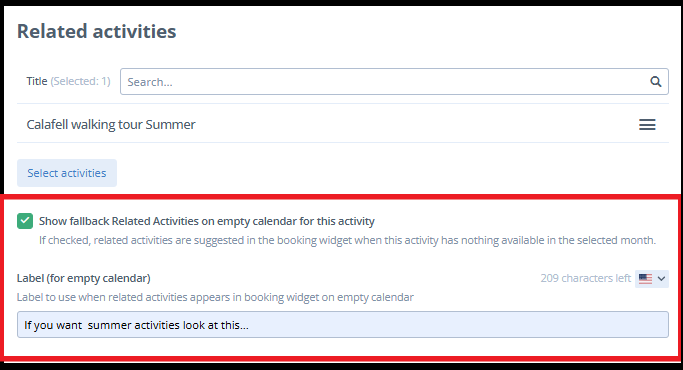
8. Save the activity
Click Save to apply your changes.
Fallback Related Activities are now enabled for this activity and can appear in the Booking Widget when the selected month has no availability.
🎥 Video: Configuration
Configuring both activities
Fallback Related Activities are enabled per activity.
For example, imagine you have:
Winter Paragliding → Summer Paragliding
If you enable Fallback Related Activities on Winter Paragliding, Summer Paragliding can be suggested when the Winter calendar is empty.
However, this does not automatically enable the feature on Summer Paragliding.
If you also want Winter Paragliding to appear when the Summer calendar is empty, you need to:
- Open Summer Paragliding
- Configure Winter Paragliding as a Related Activity, if it is not already configured
- Enable Show fallback Related Activities on empty calendar for this activity
- Configure the empty-calendar label
- Save the activity
Each direction must therefore be configured and enabled separately.
| Activity | Related Activity | Fallback enabled |
| Winter Paragliding | Summer Paragliding | Yes |
| Summer Paragliding | Winter Paragliding | Yes |
Disabling Fallback Related Activities
To stop showing Fallback Related Activities for an activity, return to its Related Activities configuration and disable:
Show fallback Related Activities on empty calendar for this activity
This only disables the empty-calendar behavior for that activity. Your standard Related Activities configuration remains unchanged.
Best practices
To get the most value from this feature:
- ✔ Connect seasonal activities that complement each other
- ✔ Choose Related Activities that make sense as alternatives to the activity being viewed
- ✔ Remember that all configured Related Activities, including Partner Network activities, can appear
- ✔ Check that your suggested activities are likely to have availability during the periods when the original activity does not
- ✔ Use a clear label that explains why the customer may want to explore another activity
- ✔ Enable the feature separately on every activity where you want the fallback behavior
Fallback Related Activities can help customers continue exploring relevant options when they reach a month with no availability, rather than ending their booking journey there.