![trekksoft-whitelogo.png]](https://support.trekksoft.com/hs-fs/hubfs/trekksoft-whitelogo.png?height=30&name=trekksoft-whitelogo.png)
Here's an overview of what we cover in this article:
________________________________________________________________________
What Are Down Payments?
A down payment is an initial up-front partial payment which means you can charge only a fraction of the total price of a booking or even zero if you wish to invoice the total cost and use TrekkSoft as more of a reservation system.
If you already know about our down payments and how to set them up, take a look at our Frequently Asked Questions
________________________________________________________________________

Choose a question below which you would like to view more information about:
- How Can I Setup A Down Payment?
- How can I view bookings that have paid a down payment only?
- How does A Down Payment Appear When Guests Make A Booking?
- What Does A ticket With A Down Payment Look Like?
- How to customize watermark for tickets?
- How To Setup Down Payments For Add-ons
________________________________________________________________________
How Can I Setup A Down Payment?
When you are adding a price category, there is a Full payment or deposit option where you can specify the amount that guests are charged at the time of booking.
To enable down payment, follow the steps below:
- When creating a price category, select the Advanced options menu.
- Under the Full payment or deposit menu, select 'Guests pay a deposit at the time of booking'.
- The option 'Deposit amount' will now be visible. Enter the amount you would like to charge your guests for the booking.
- Finally, click Save changes.
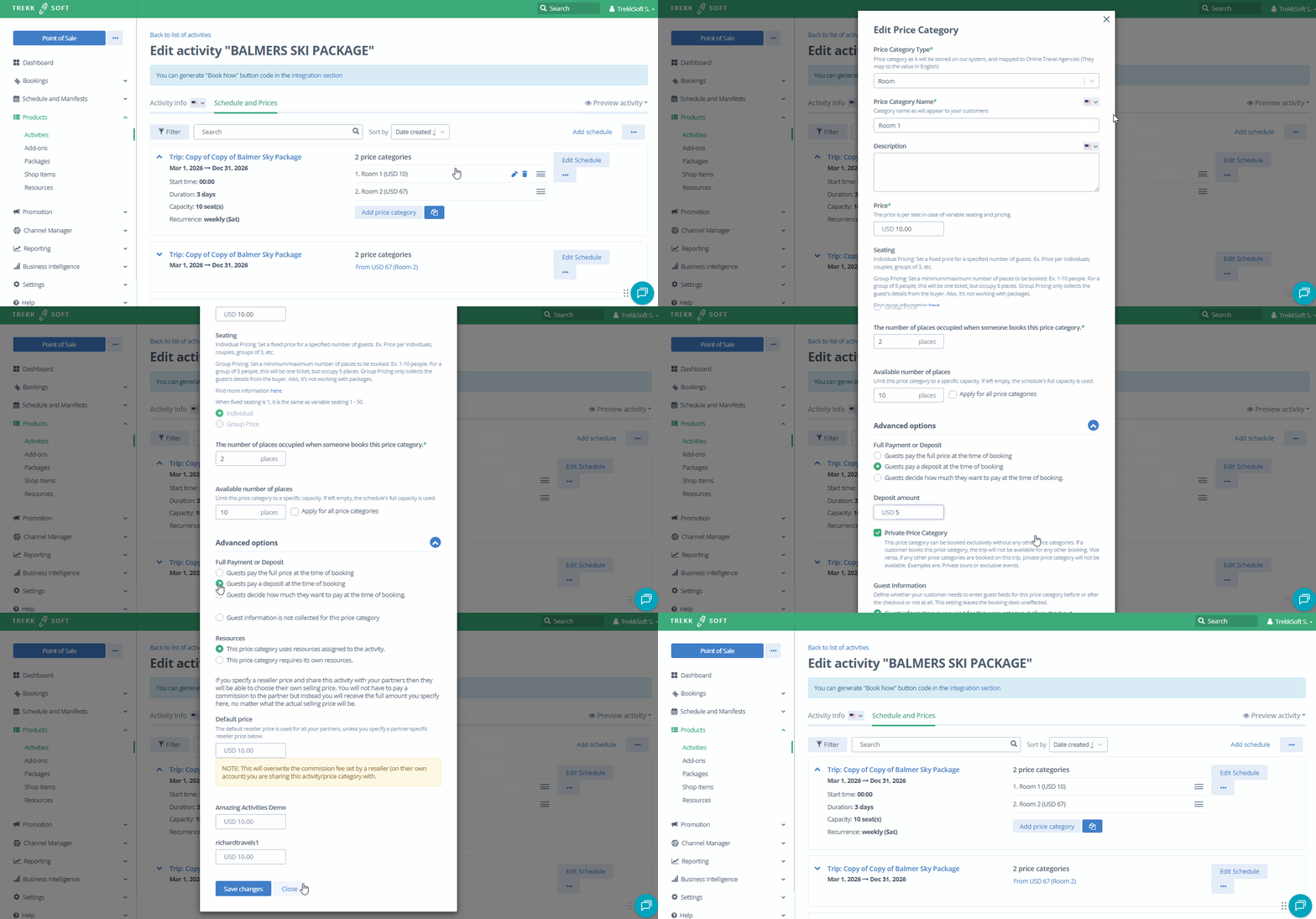
(Find out more information on creating price categories here)
________________________________________________________________________
How can I view bookings that have paid a down payment only?
To view these types of bookings follow the steps below:
- Log into your TrekkSoft Backoffice/Admin Desk.
- In the menu on the left, click on Bookings > Overview.
- Click Filter button at the top left corner above all the bookings.
- From the window that opens up, select Outstanding .
- Close the filter window and now you'll see all the baskets with outstanding balance.
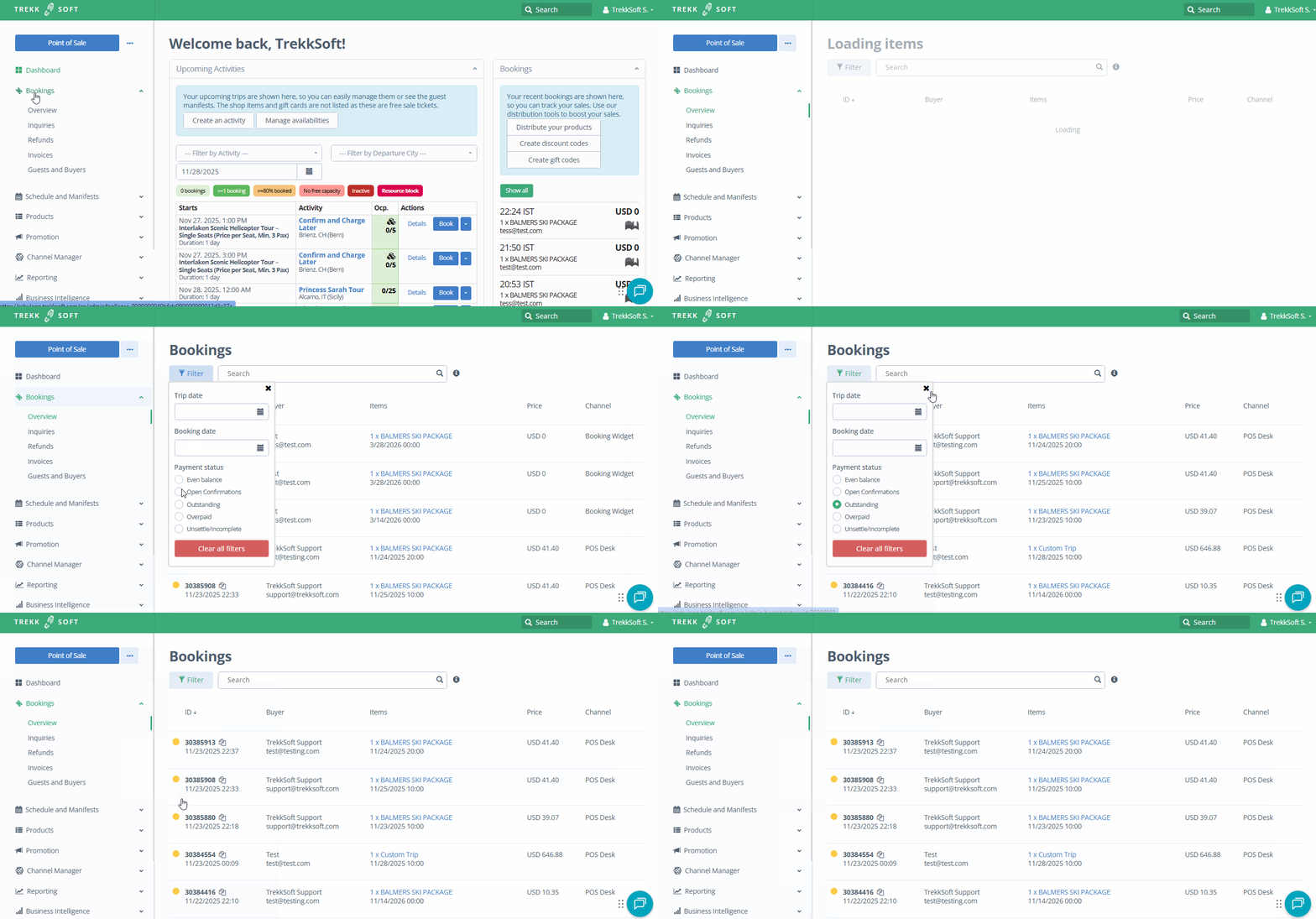
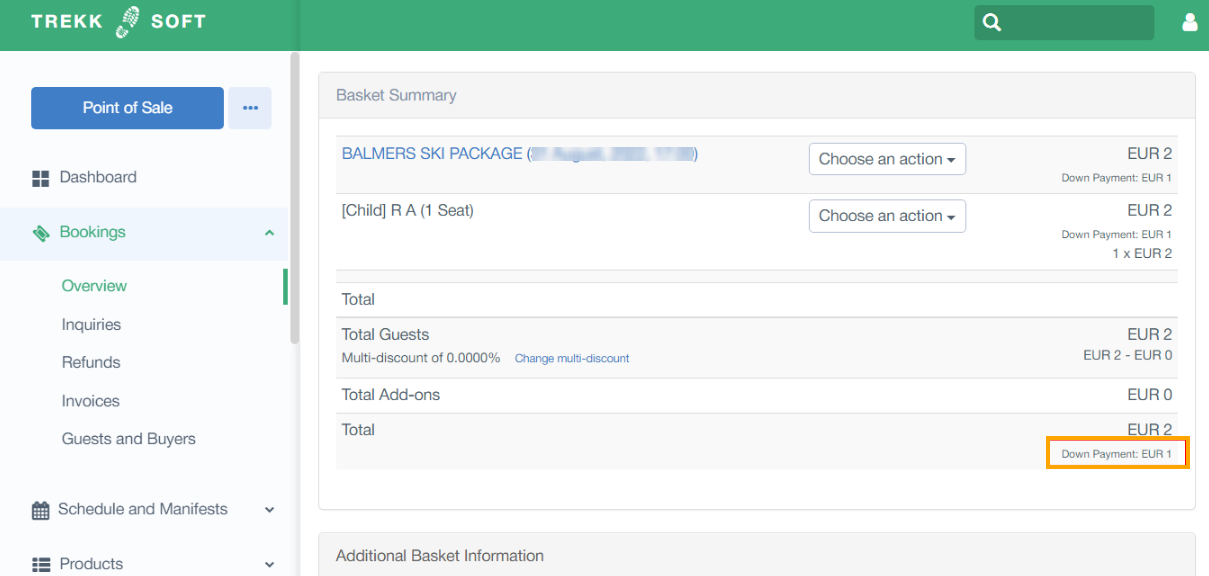
From this screen, click the details button next to any booking. Once in the booking, you can scroll to Basket Summary and you will see the down payment amount for each of the guests in that basket.
________________________________________________________________________
How Does A Down Payment Appear When Guests Make A Booking?
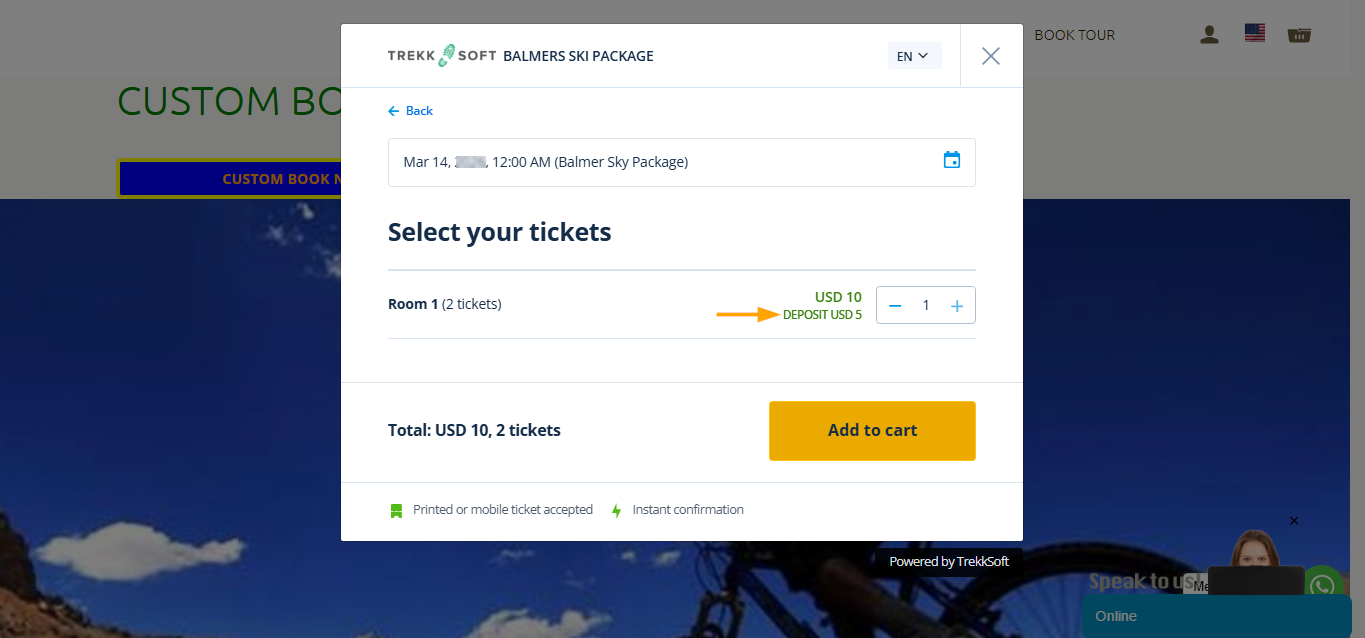
When a guest adds a person/guest to their basket whilst booking, the down payment amount is listed under the full price (as shown below).
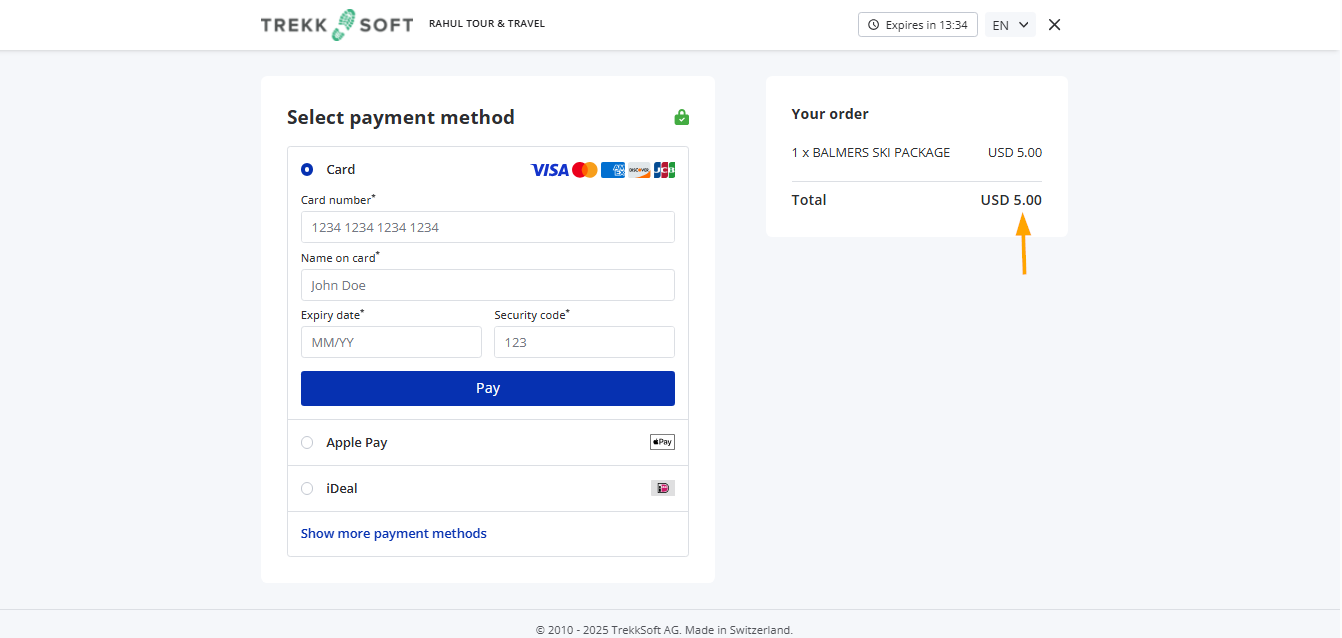
Here is how the deposit will be shown in the check out page:
________________________________________________________________________
What Does A Ticket With A Down Payment Look Like?
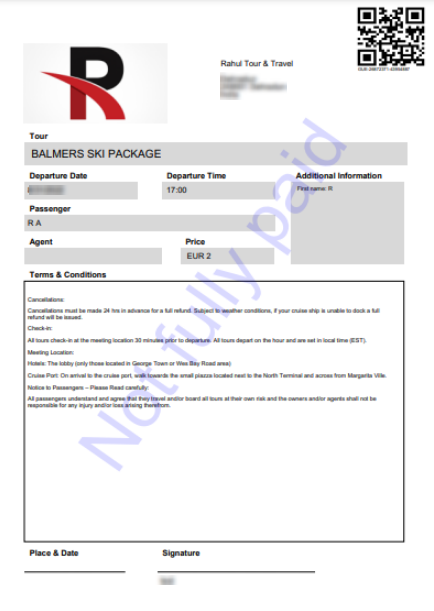
For every basket that is not paid in full i.e. only a down payment has been taken, a watermark is added across the receipt. Find an example of the ticket with watermark below:
________________________________________________________________________
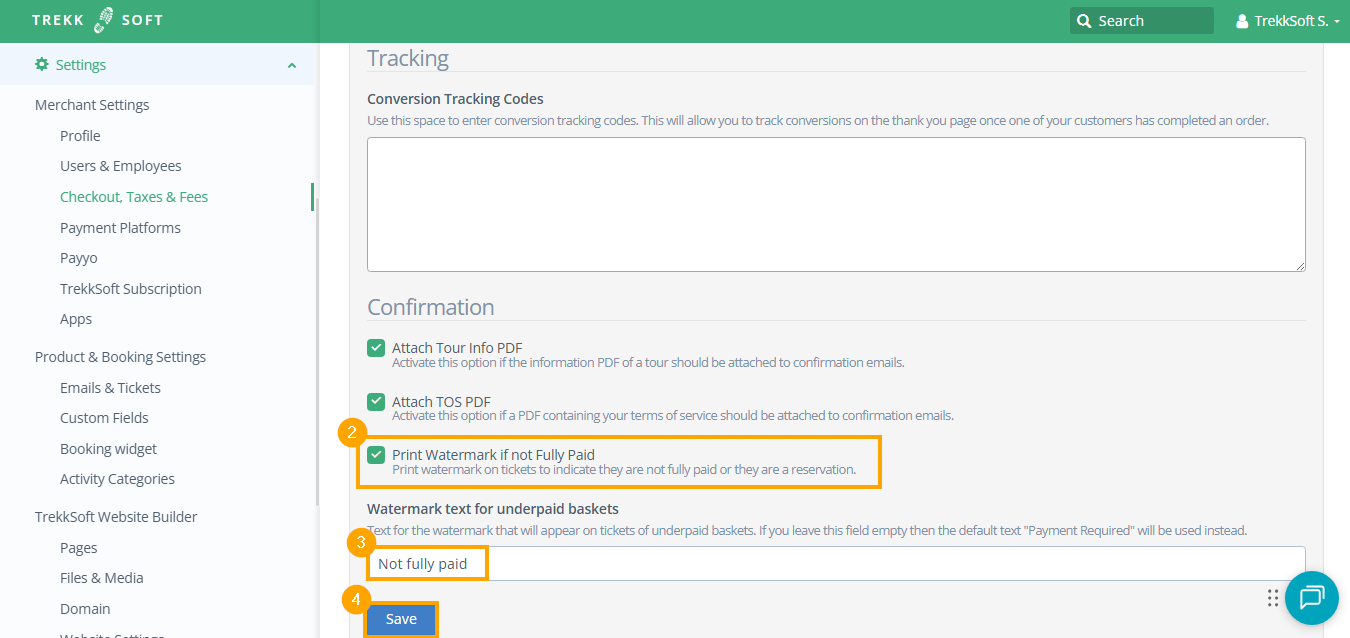
How to customize watermark for ticket?
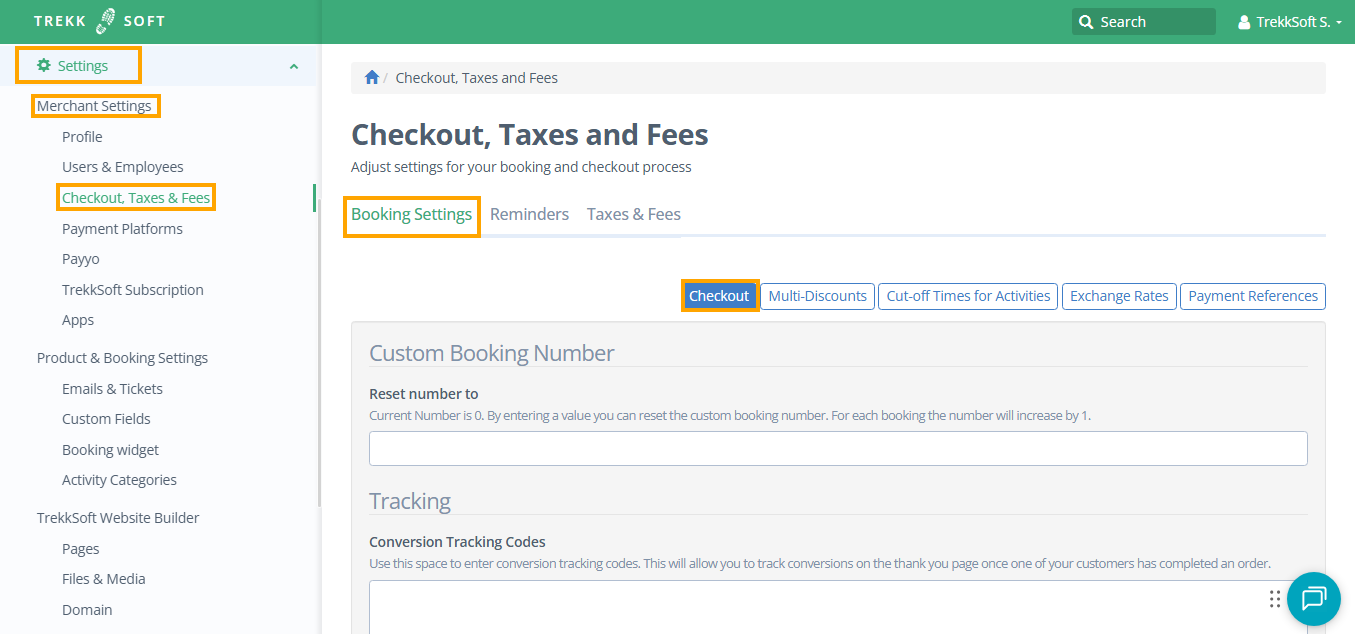
If you wish, you can customize the watermark text by following the steps below:
- Navigate to Settings > Merchant Settings > Checkout, Taxes & Fees > Booking Settings > Checkout
- Check "Print Watermark if not Fully Paid" option
- Enter the watermark text under Watermark text for underpaid baskets section.
- Finally, click Save.
________________________________________________________________________
How To Setup Down Payments For Add-ons
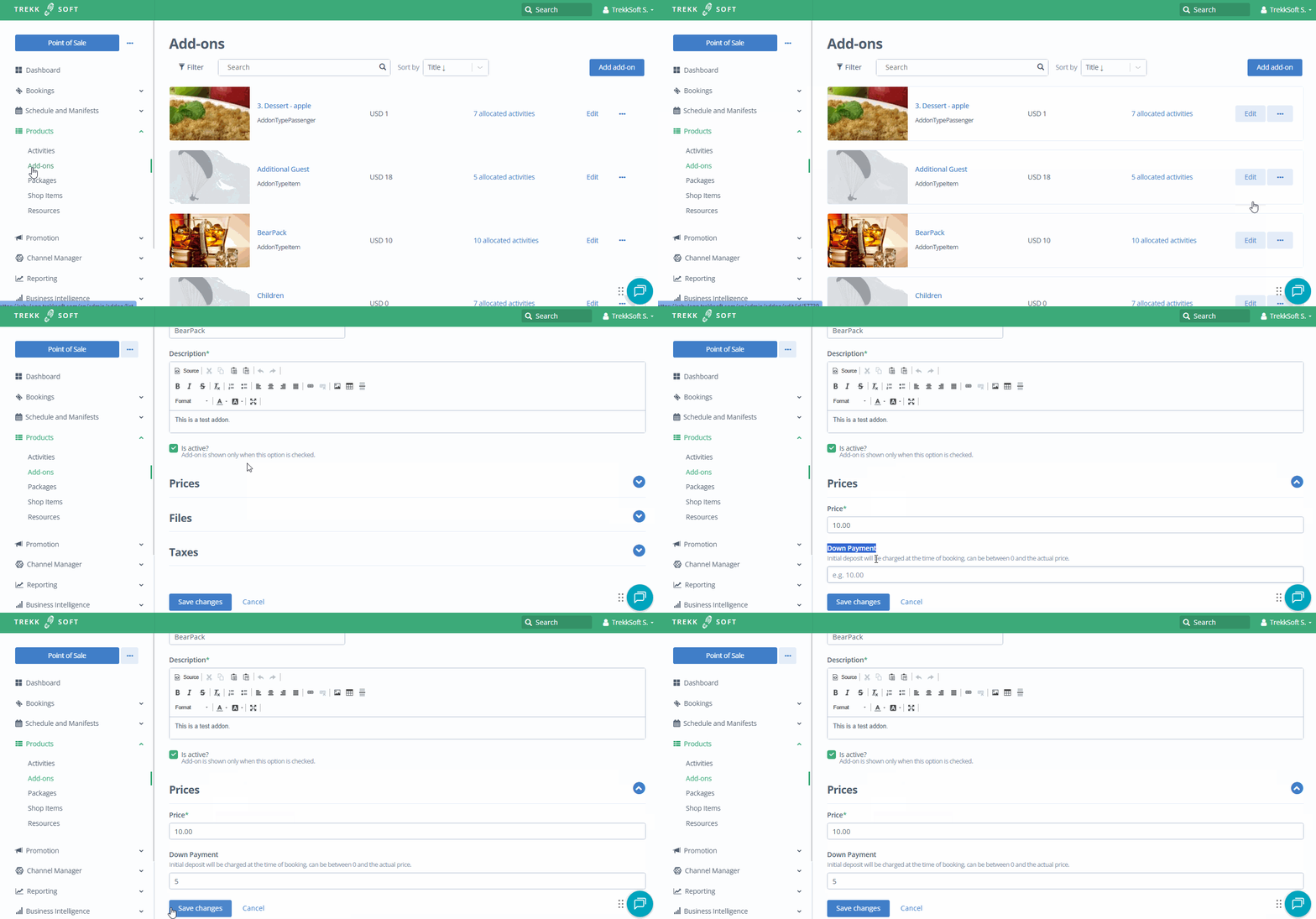
This feature is also available for add-ons. You can add a down payment for an add-on following these steps:
- On the left-hand menu, go to Products > Add-ons.
- Now, either add a new add-on or click the edit button next to the add-ons you wish to modify.
- Scroll down and click on the Prices section.
- Enter the down payment amount in the relevant field.
- Click the Save changes button.