![trekksoft-whitelogo.png]](https://support.trekksoft.com/hs-fs/hubfs/trekksoft-whitelogo.png?height=30&name=trekksoft-whitelogo.png)
Here's an overview of what we cover in this article:
________________________________________________________________________
Overview
A Private/Custom booking can be created for trips that are not bound to a set schedule, or if you would like to create a personalized booking for your guests. You could create custom tours for guests and tailor them to suit your customers; or you accept Activity Inquiries where customers can request a date for the trip, outside your pre-assigned schedule.
________________________________________________________________________
Create Custom Booking
To allow your team to create Private/Custom bookings, first, edit user permissions to allow your staff or resellers to make custom bookings.
Enable your agent to sell custom tours
To enable the custom trip feature for yourself and other users, follow the steps below :
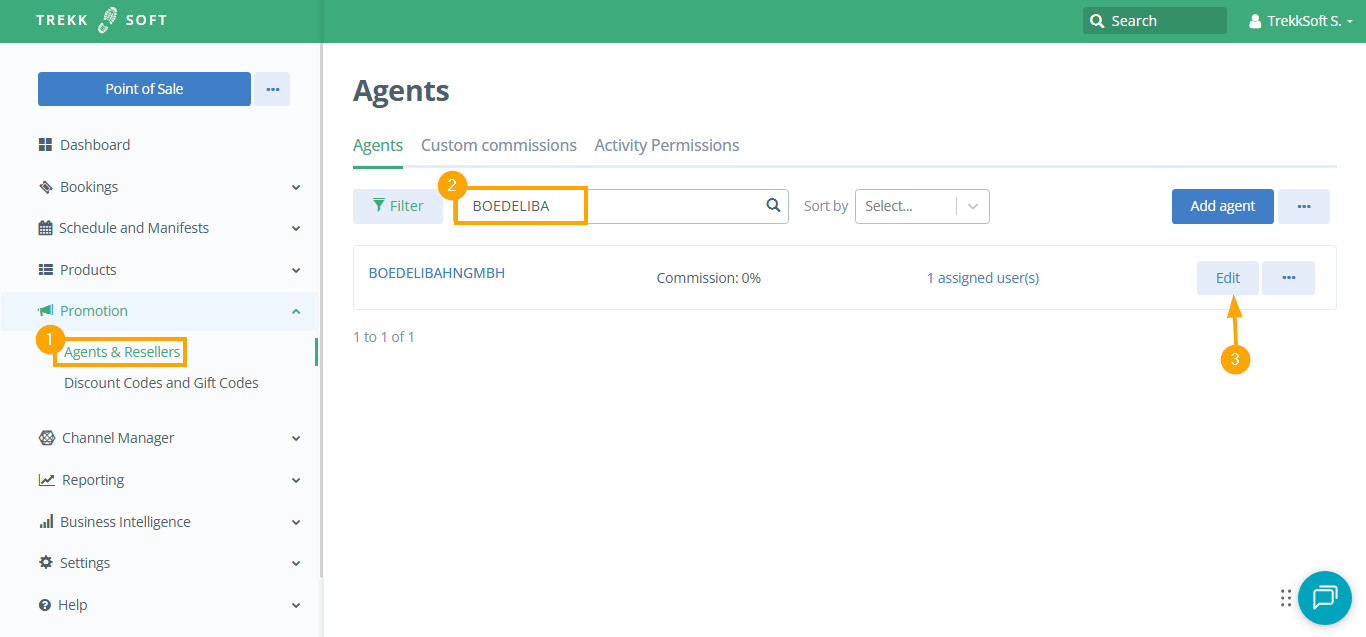
- In your TrekkSoft Backoffice, navigate to Promotion > Agents & Resellers.
- Search for the agent you want to edit.
- Next, click Edit.
- Under Pricing section, check “Offer Custom Trips” permission.
- Finally, click Save.
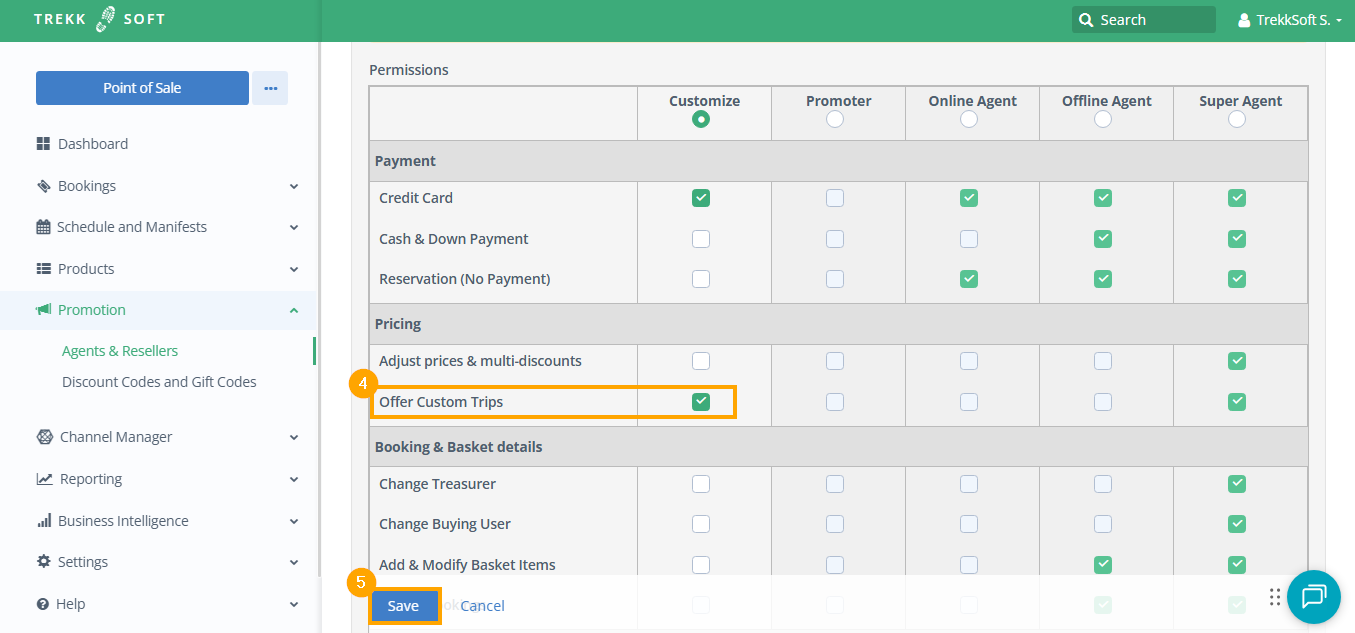
NOTE ! By default, this option is disabled. You’ll have to make these changes manually.
Create a custom booking
Once the permission is enabled, follow the steps below to create a Custom/Private Booking:
-
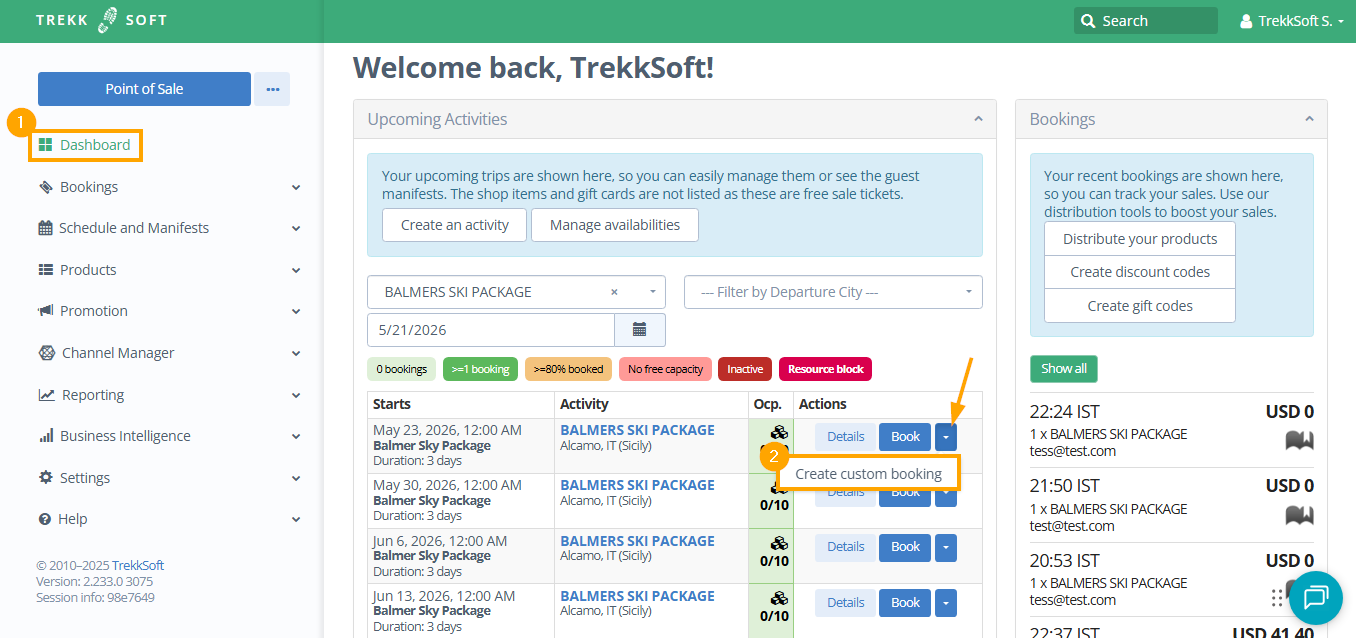
Go to the Dashboard from the left menu.
-
Click on the Create custom booking option by clicking on the down arrow next to the desired activity schedule. This will redirect you to the POS Desk:
-
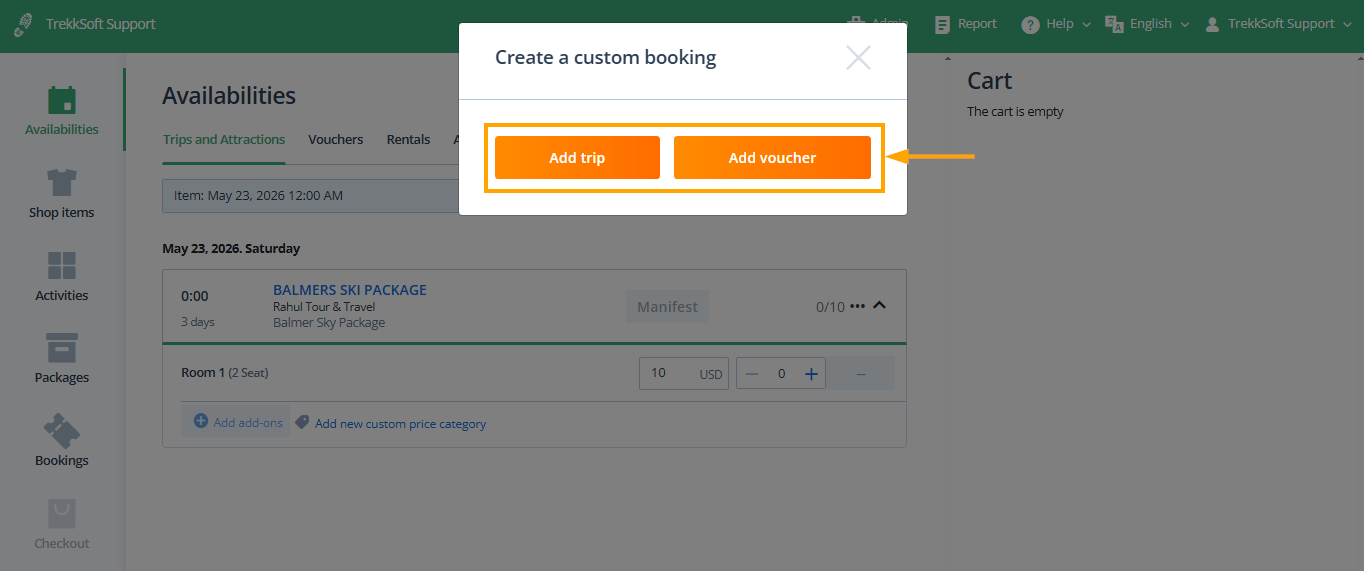
Select custom booking type: You’ll have the choice of a Voucher or Attraction/Trip. A Voucher is not tied to a date or time and is not limited by resources either. An Attraction/Trip, on the other hand, is bound by a fixed date and has limited capacity:
-
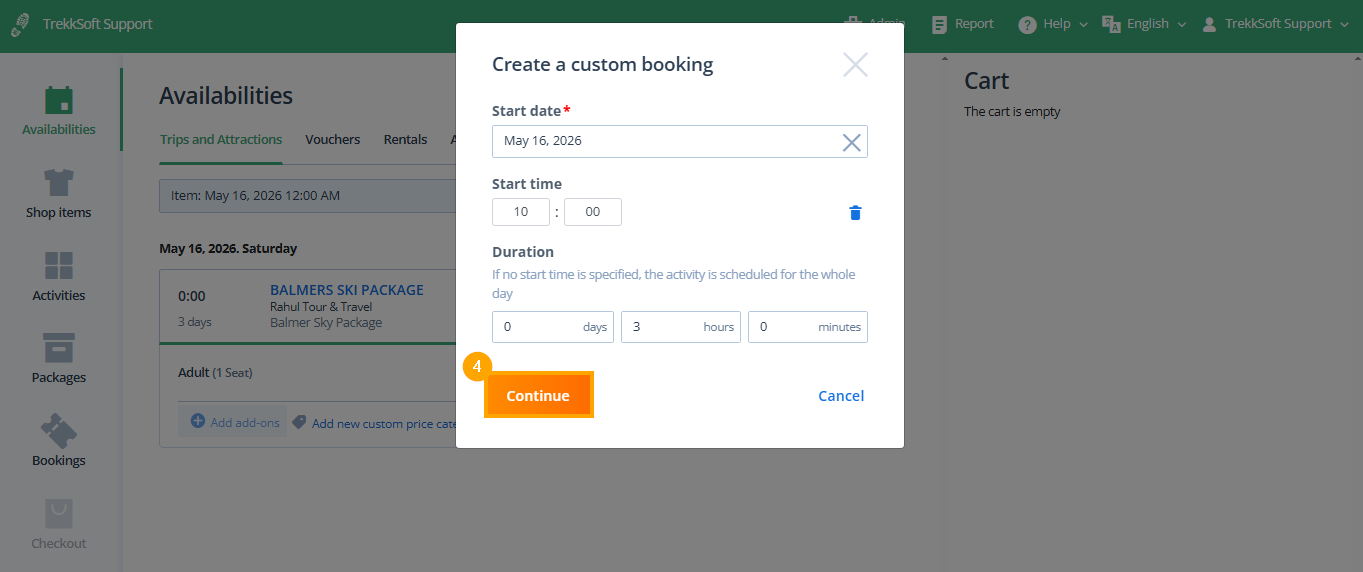
After selecting the type of booking, fill out the trip Start date, Start time, Duration and click Continue.
-
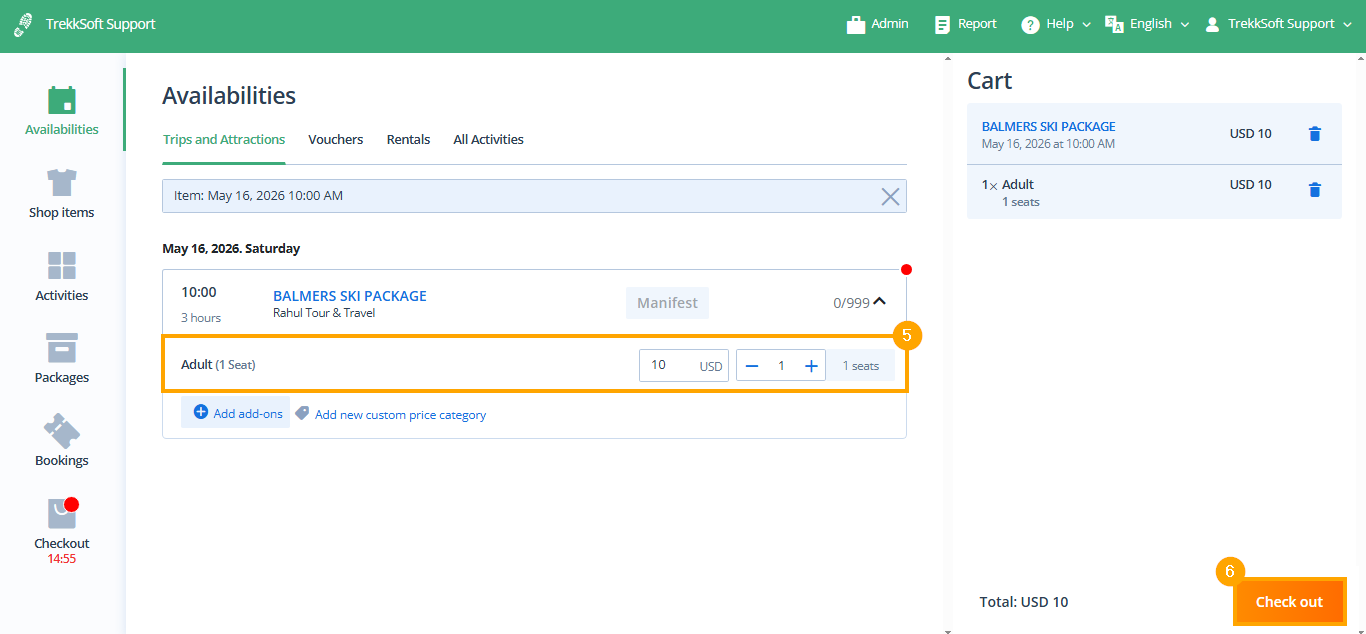
Add price and slots: Add the custom price and the number of slots you would like to to book
-
Next, click Check out..
-
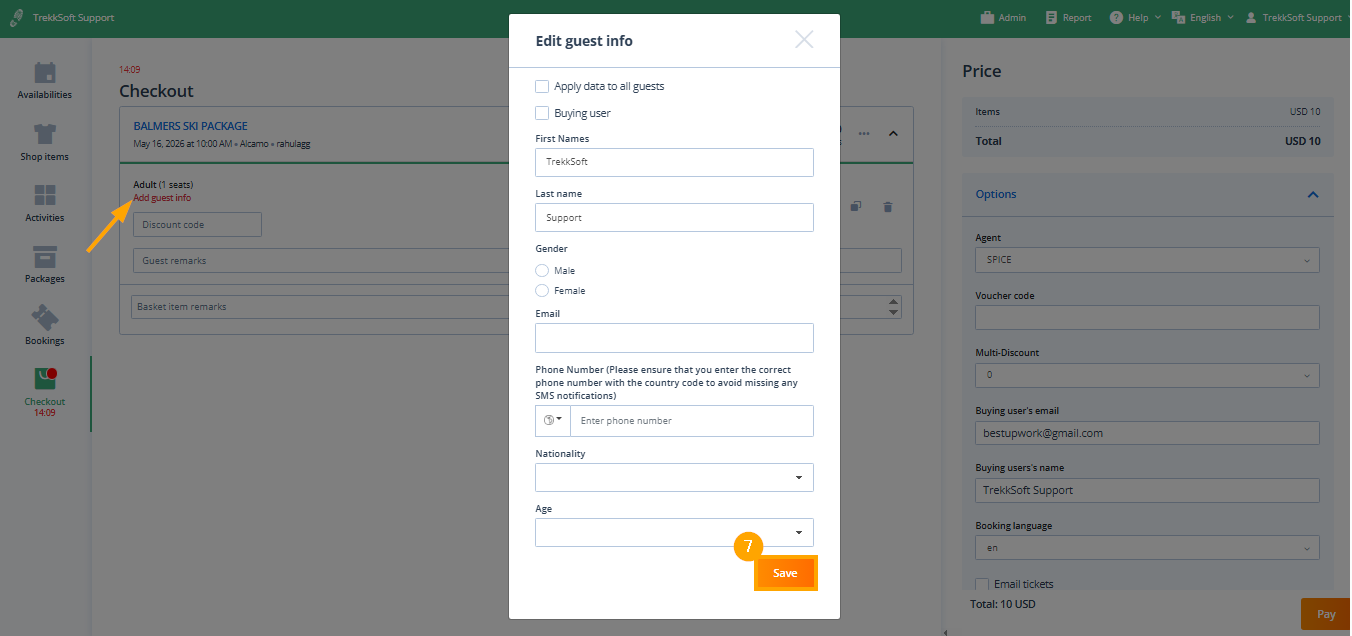
Add guest details: Add details of the guest added to the trip and make sure to click Save.
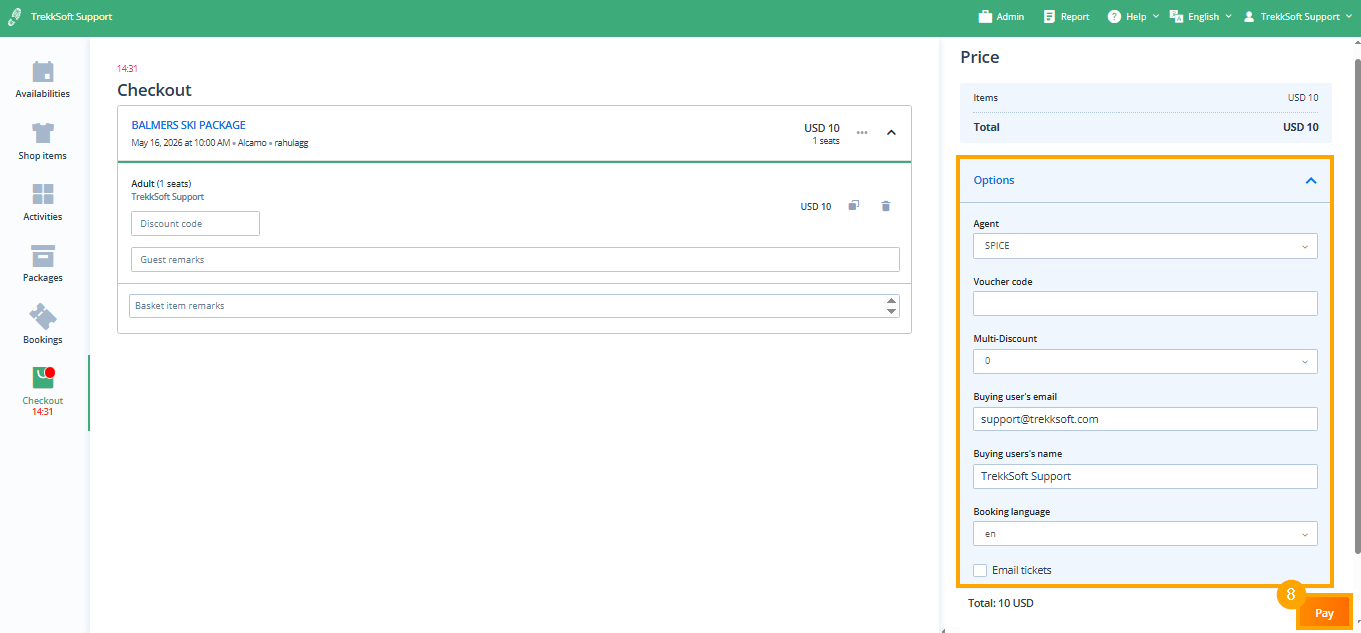
- Add buyer details: Add buyer details and other details such as Agent, Voucher code (if any) etc. Next, click Pay.
-
Select payment method: Lastly, you can either register the booking as Paid or as a Reservation.
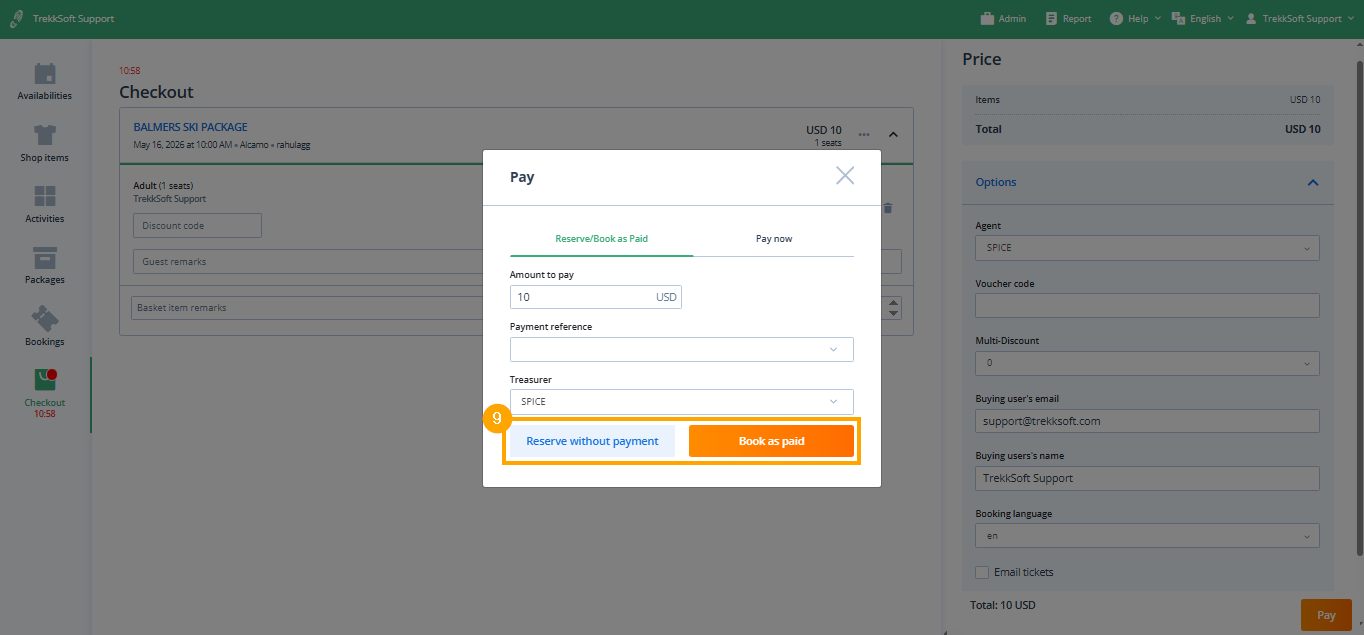
Generate payment link for buyers
If the booking is registered as a reservation, a unique payment link can be generated that directs your customer to the payment page: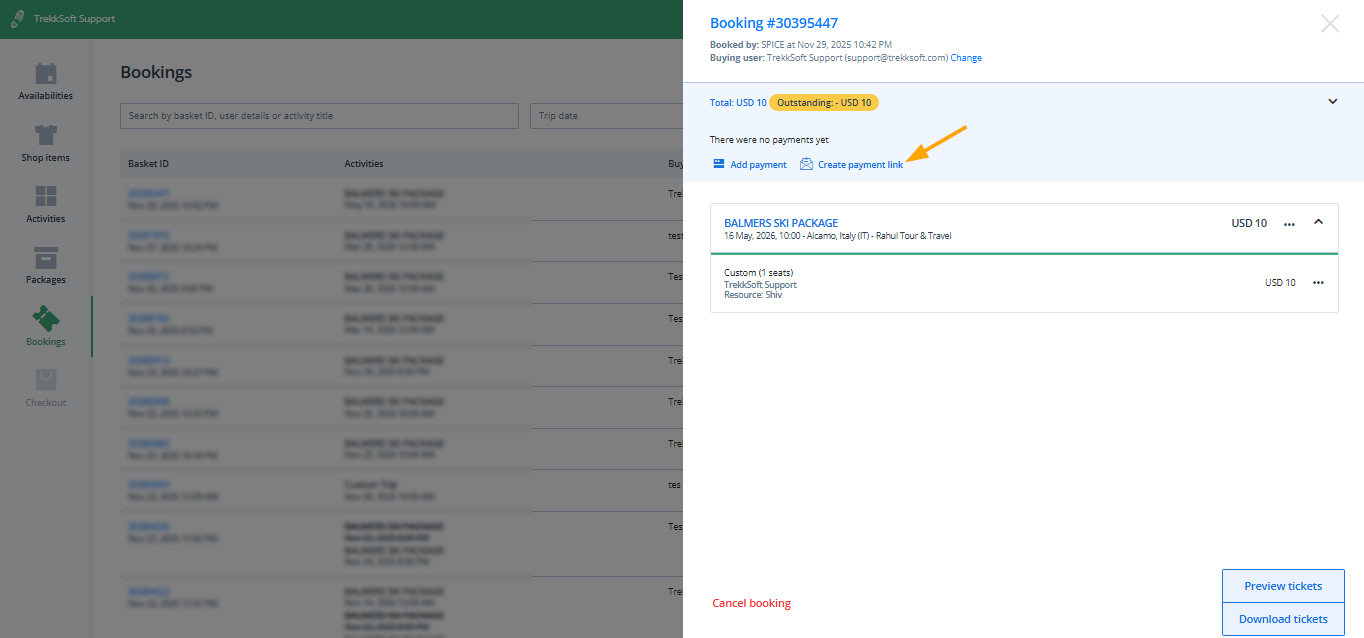
________________________________________________________________________
Video Tutorial on creating custom booking
Watch the video tutorial showing the step by step instruction on how to create a custom booking for your guest via Admin Desk: