![trekksoft-whitelogo.png]](https://support.trekksoft.com/hs-fs/hubfs/trekksoft-whitelogo.png?height=30&name=trekksoft-whitelogo.png)
Overview
The Booking Widget now supports both Light Mode and Dark Mode, allowing you to decide how the widget is displayed to your visitors.
This feature has been introduced to improve accessibility and provide a better experience for visitors who use dark mode on their devices.
Why did we add this feature?
Many visitors browse the web using Dark Mode on their browser or operating system. Supporting their preferred color scheme improves readability, reduces eye strain, and helps websites meet modern accessibility recommendations. The Booking Widget now includes theme options to support these preferences while giving merchants flexibility over how the widget is displayed.
Configuring the Booking Widget Theme
The theme can be configured in your admindesk from:
Settings → Booking Widget → Integration → Additional options
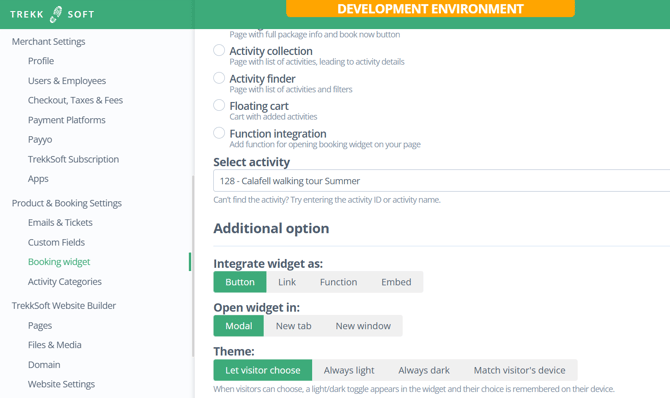
The Theme setting offers four different options.

1. Let visitor choose (Default)
This is the default option for all Booking Widgets.
When the Booking Widget opens:
- It initially matches the visitor's device preference (Light or Dark Mode).
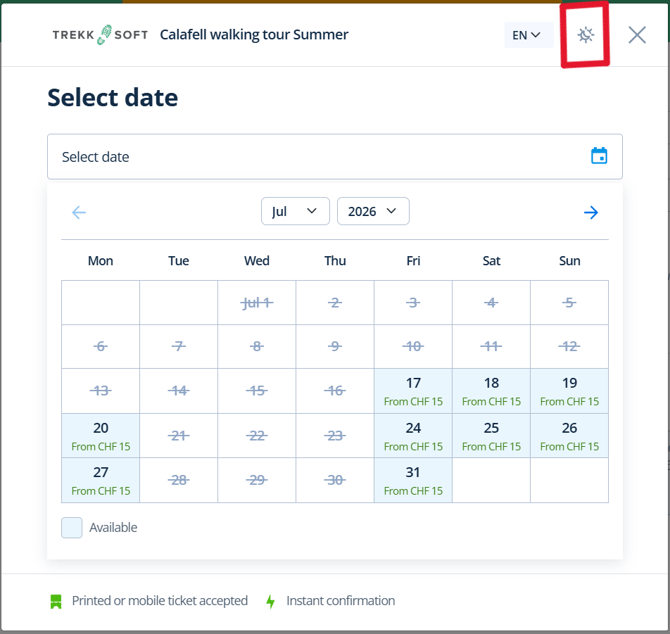
- A theme switcher appears in the Booking Widget.
- Visitors can switch between Light and Dark Mode whenever they want.
- Their preference is remembered on their device for future visits.
Accessibility compliance: ✅ Compliant
2. Always light
The Booking Widget is always displayed in Light Mode.
- Visitors cannot switch to Dark Mode.
- The theme switcher is not displayed.
This keeps the Booking Widget visually consistent with websites that only use a light theme.
Accessibility compliance: ❌ Not compliant
3. Always dark
The Booking Widget is always displayed in Dark Mode.
- Visitors cannot switch to Light Mode.
- The theme switcher is not displayed.
Accessibility compliance: ❌ Not compliant
4. Match visitor's device
The Booking Widget automatically follows the visitor's browser or operating system setting.
- Visitors using Light Mode will see the Light version.
- Visitors using Dark Mode will see the Dark version.
- The theme switcher is not displayed because the widget always follows the device preference.
Accessibility compliance: ✅ Compliant
Accessibility and Compliance
Supporting a visitor's preferred color scheme is an important accessibility improvement.
The Booking Widget is considered accessibility compliant when visitors can view it using their preferred theme.
The following options are compliant:
- ✅ Let visitor choose
- ✅ Match visitor's device
The following options are not compliant because they force a single color scheme:
- ❌ Always light
- ❌ Always dark
Which option should I choose?
For most merchants, we recommend Let visitor choose.
This option:
- requires no additional configuration,
- is enabled automatically for all existing Booking Widgets,
- follows the visitor's preferred theme by default,
- allows visitors to change the theme whenever they wish,
- provides the best accessibility experience.
If you prefer the Booking Widget to always follow the visitor's device without showing a selector, choose Match visitor's device.
Can I force a specific theme?
Yes.
Some merchants may prefer their Booking Widget to always match the appearance of their website. For example, a website that only uses a light theme may prefer the Booking Widget to remain light as well.
You can do this by selecting Always light or Always dark.
While this is a valid branding decision, it removes the visitor's ability to choose their preferred color scheme and therefore does not meet accessibility recommendations.